Overview
This section of the documentation describes in detail how to edit a single listing or a variant on eBay through the platform. It illustrates the different available sections, functionalities, and fields that can be updated, with clear explanations supported by visual examples.
How to Edit a Single Listing or Variant
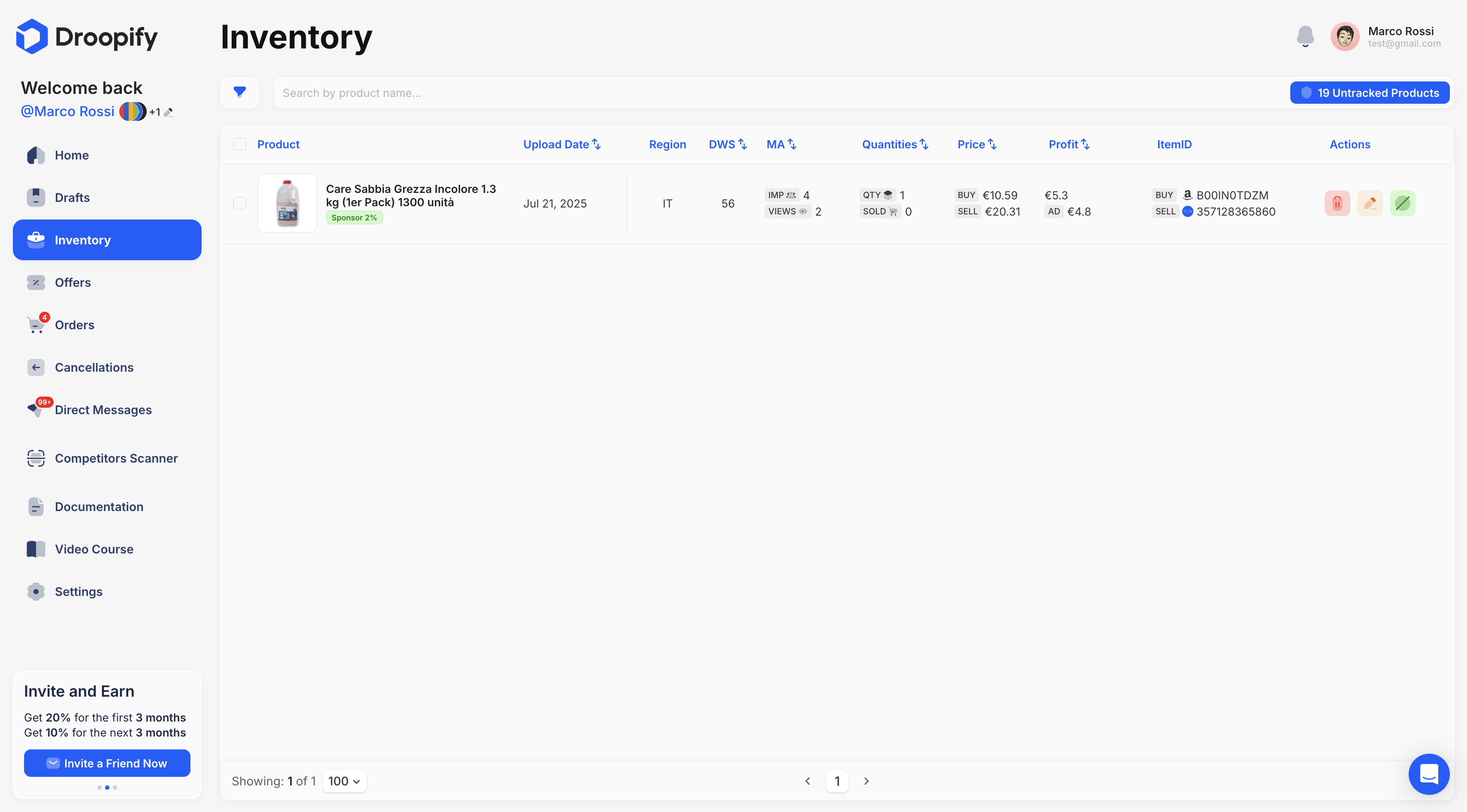
To edit a listing, click on the yellow pencil icon next to the desired listing. A pop-up will open, allowing you to update the listing details.
"Single Product" Section
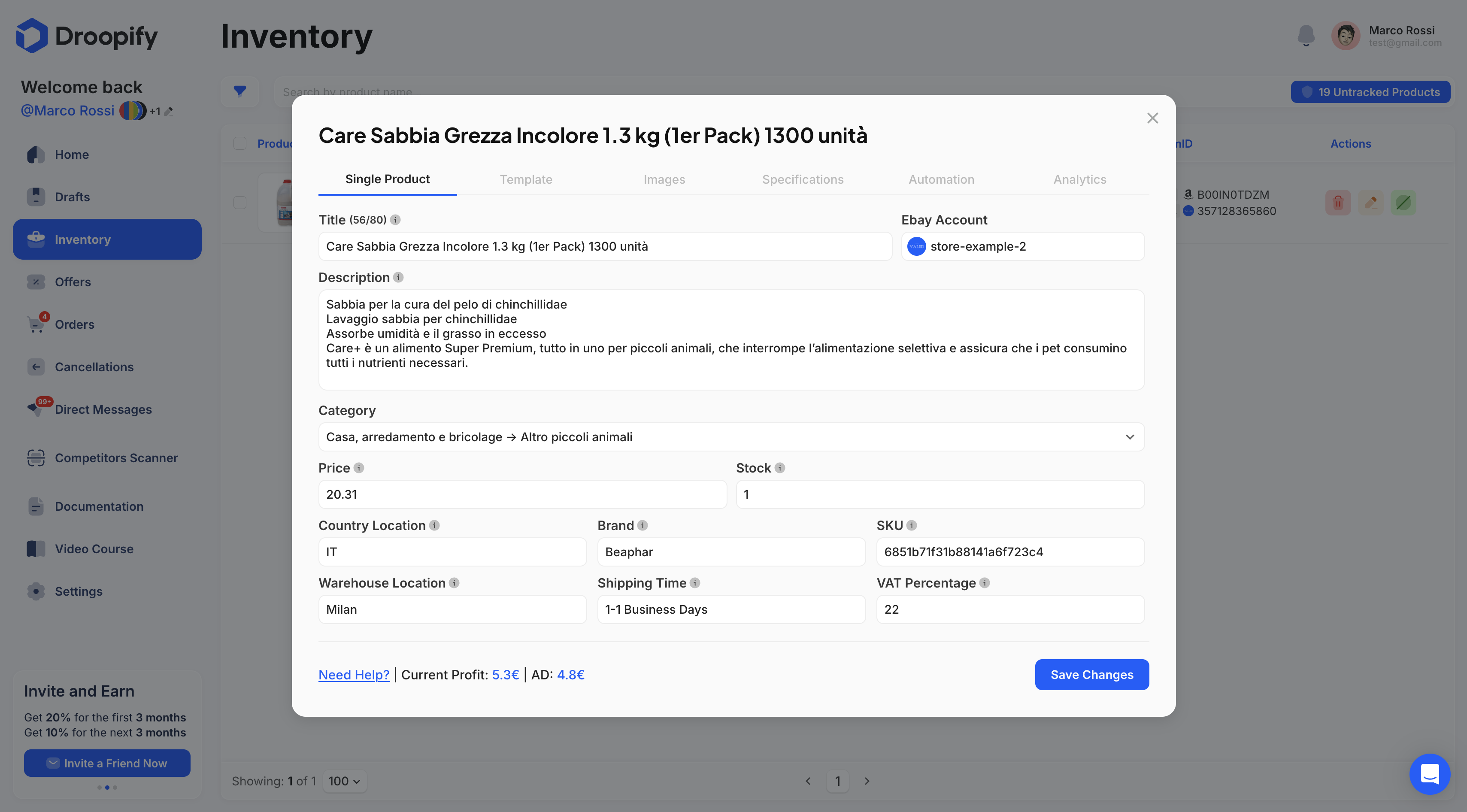
This section contains the main fields of the listing. You can update the most relevant aspects of the listing.
| Field | Editable | Description |
|---|---|---|
| Title | ✅ | Title of the eBay listing (max 80 characters). |
| eBay Account | ❌ | eBay account on which to publish. If only one account is available, it is automatically selected. |
| Description | ✅ | Product description, displayed on eBay using an HTML template. |
| Category | ✅ | eBay category. If left empty, it is calculated automatically. |
| Stock | ✅ | Available quantity, automatically updated after each sale. |
| Brand | ✅ | Product brand. |
| Product Code (SKU) | ❌ | Unique code that identifies the product (SKU). |
| Sales Region | ❌ | eBay region where the product will be published. |
| Shipped From | ❌ | Region of origin of the product (Provided by the supplier, e.g. Amazon). |
| Shipping Time | ❌ | Shipping times calculated based on the supplier or the settings provided in the "eBay Account" section. |
"Price" Section
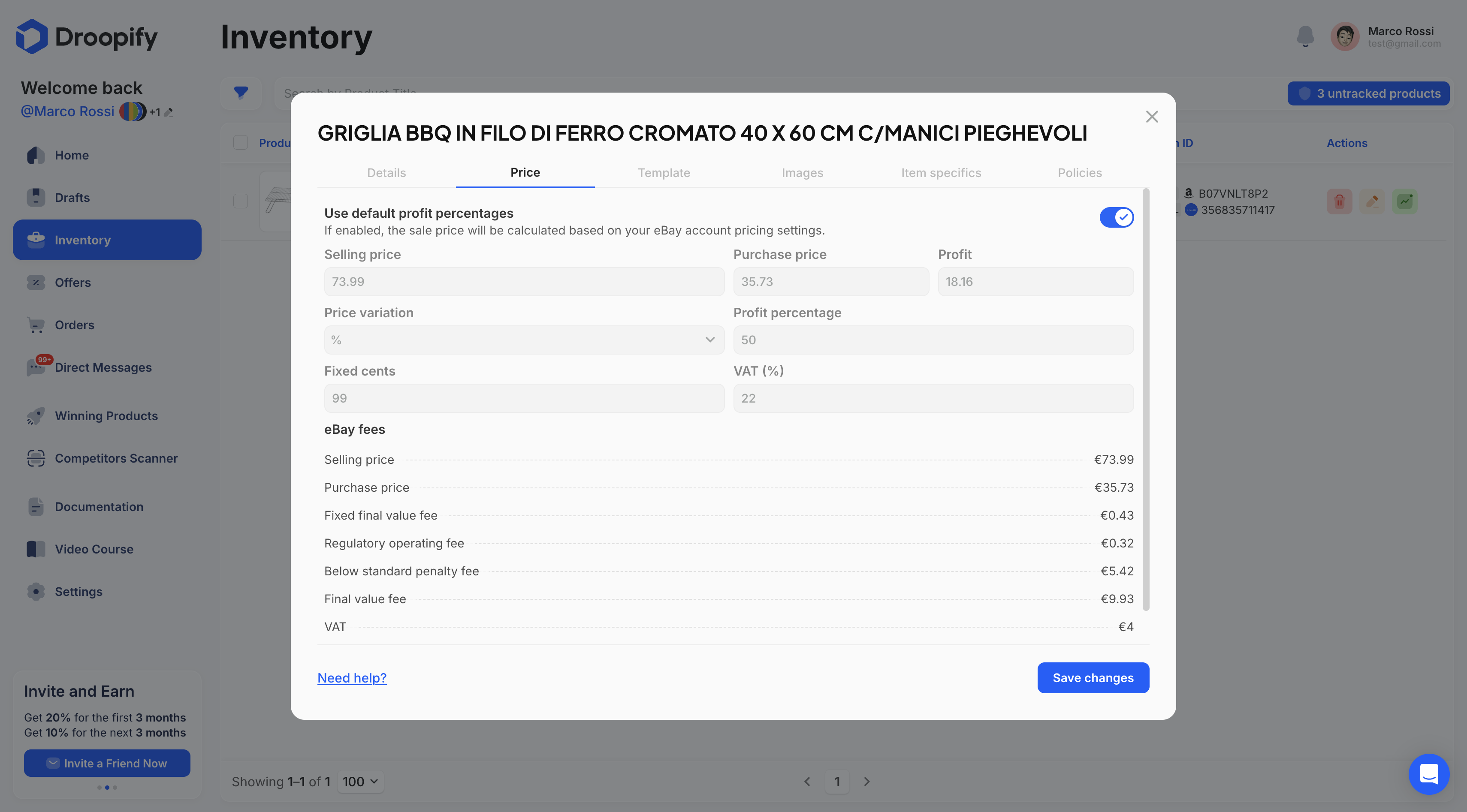
This section allows you to modify price-related aspects.
Use default profit percentages: by disabling this option, you can individually modify the fields listed below. The values set here will be used to adjust the selling price whenever the purchase price changes. The general values set in the "Prices and Availability" section of the eBay account will not be taken into consideration.
| Field | Editable | Description |
|---|---|---|
| Selling Price | ✅ | Selling price that will be shown on eBay. |
| Purchase Price | ❌ | Purchase price obtained from supplier data. |
| Profit | ❌ | Automatically calculated value ({selling_price} - {purchase_price} - {eBay_fees}). |
| Variation Type | ✅ | Choose between Percentage (e.g. +30% on supplier net cost) or Unit (e.g. +€5 fixed). |
| Profit Percentage/Unit | ✅ | Set your markup. |
| Price Cents | ✅ | Product brand. |
| VAT | ✅ | VAT percentage. |
| eBay Fees | ❌ | Displays the fees you will pay to eBay in case of a sale. |
"Template" Section
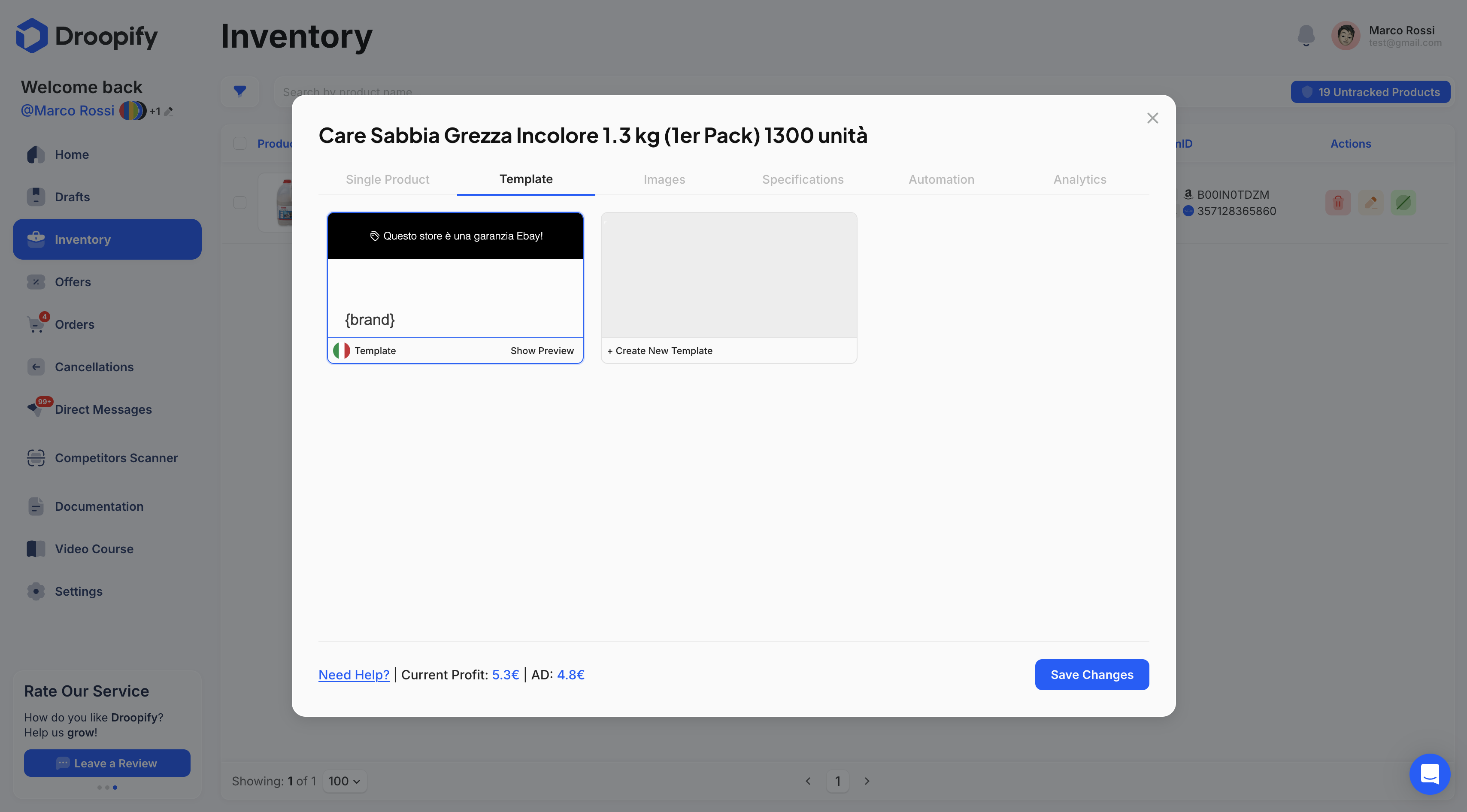
Allows you to choose the graphic template to apply to the listing. If not selected, the default one is applied automatically.
| Field | Description |
|---|---|
| Template | Select a created or imported template. |
"Images" Section
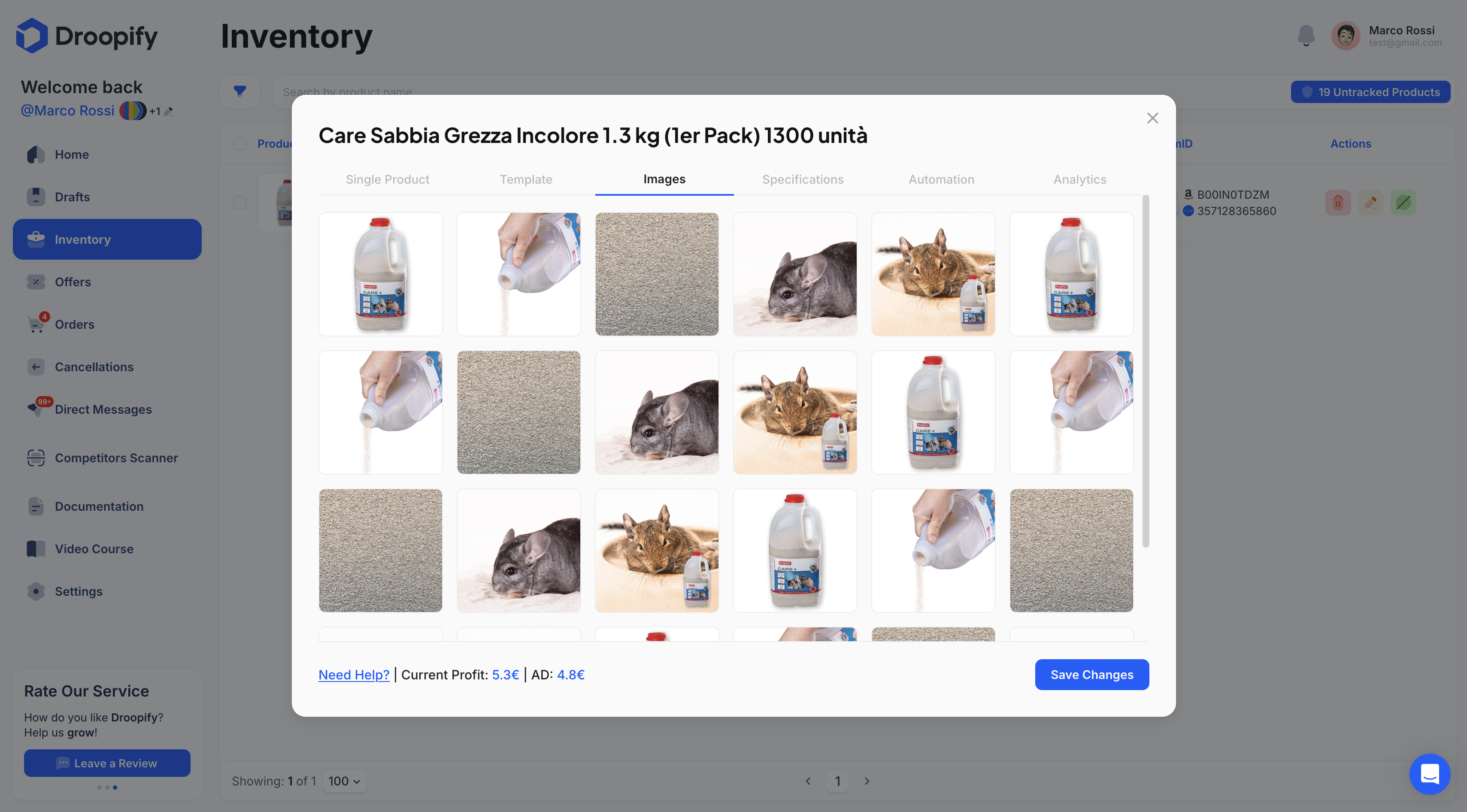
This section allows you to manage product images, remove them, or change their display order to improve the presentation of the listing.
"Item Specifics" Section
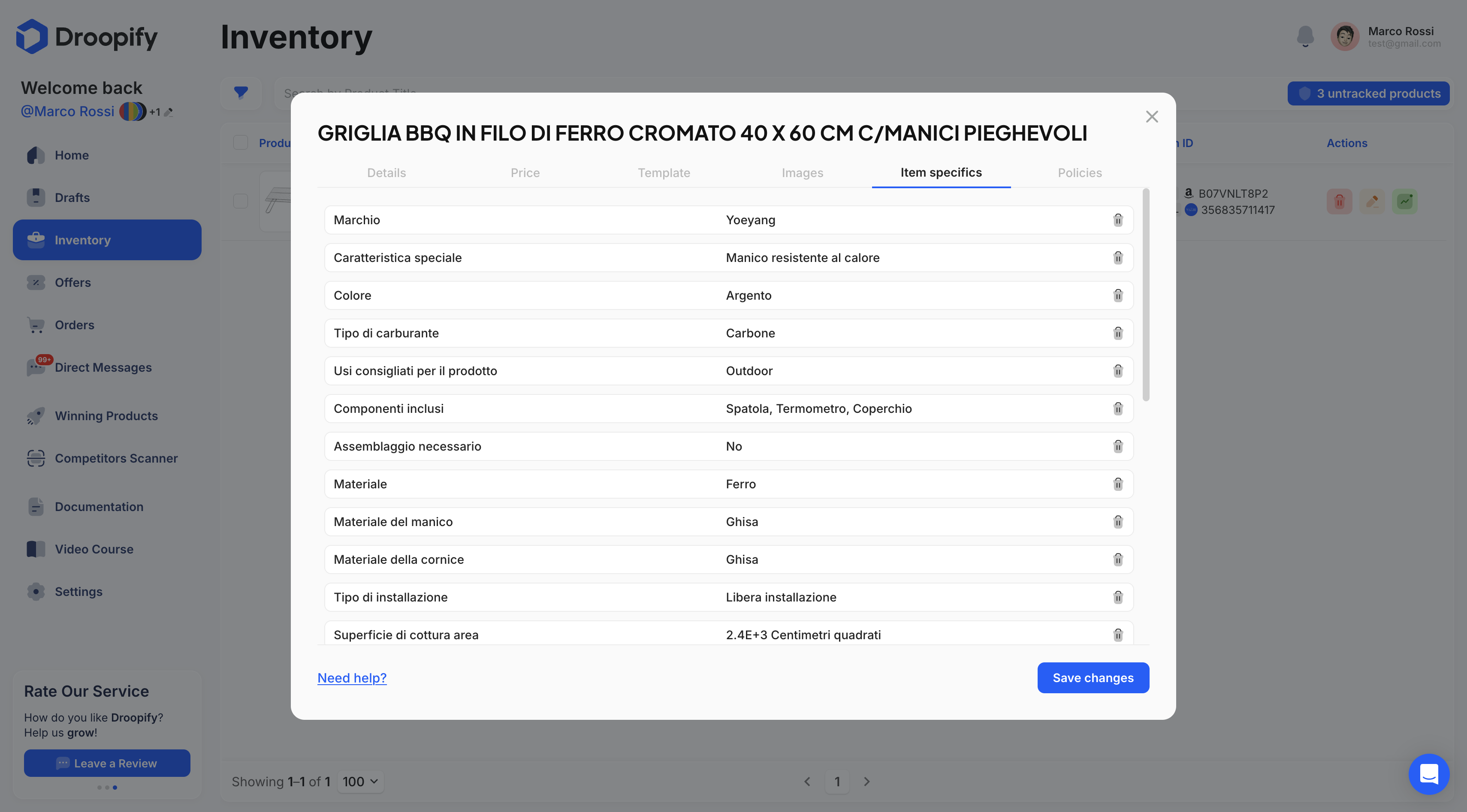
Shows the product specifications imported from the supplier. They can be edited, but it is recommended to keep them consistent with the original information.
| Field | Description |
|---|---|
| Specifications | View and edit the specifications imported from the supplier. |
"Policies" Section
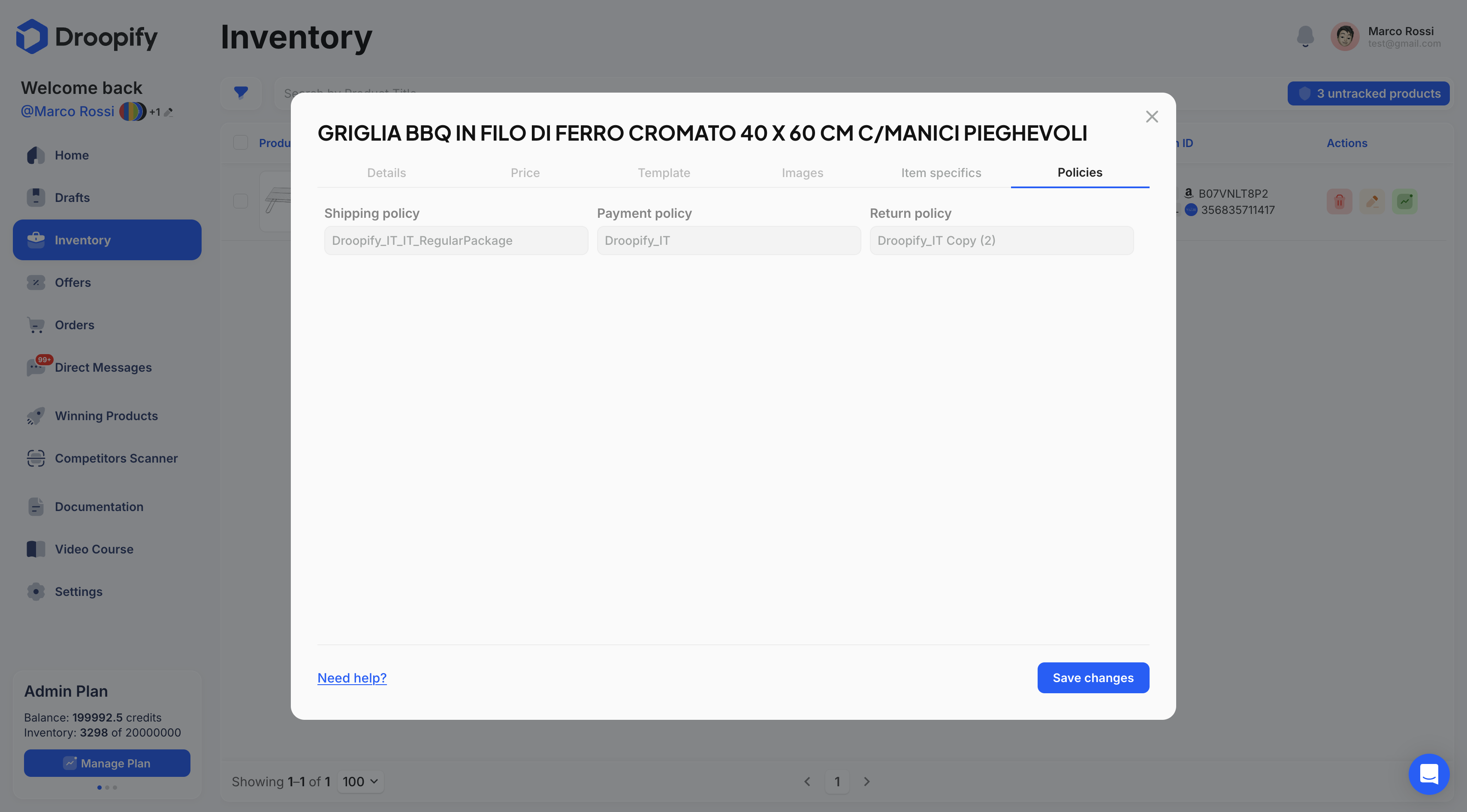
Displays information related to the product's shipping, payment, and return policies.
How to Reset a Listing
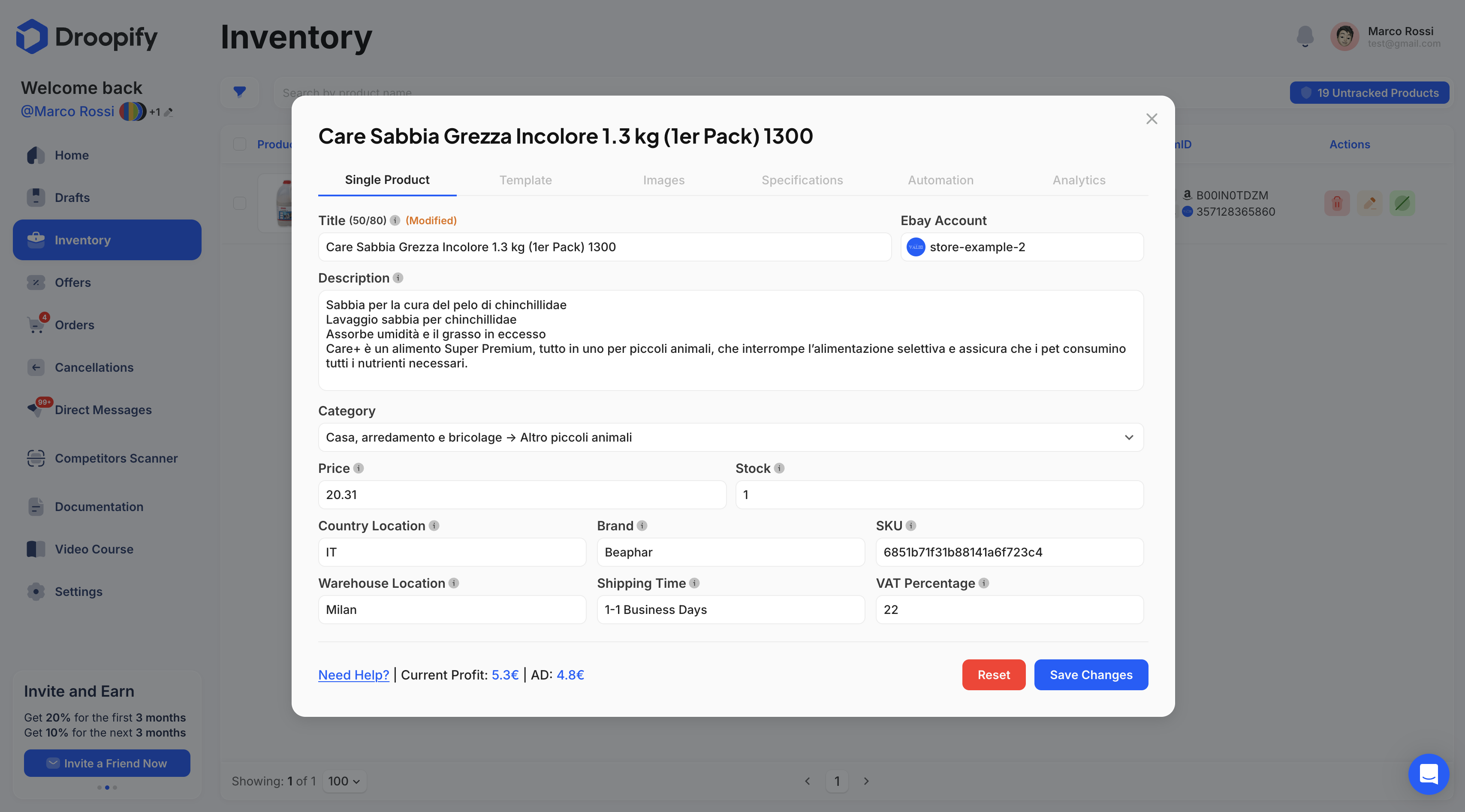
When a field of the listing is modified, a yellow tag labeled "(Modified)" will appear next to it. Additionally, near the "Save Changes" button, a red "Reset" button will appear. By clicking it, the listing will be reverted to the general settings.
Conclusion
Editing eBay listings through the platform provides full control over titles, descriptions, prices, images, specifications, and automations. Thanks to template and analysis features, it is possible to optimize presentation and monitor performance in a simple and effective way.