Overview
Editing an Ads Group allows you to centrally manage the variants of a product published on eBay. Compared to a single listing, this mode introduces specific rules for managing the main information, variants, and their related configuration sections. This guide explains in detail the differences, access methods, and available features.
Differences Compared to Editing a Single Listing
Editing a Listing with variants is similar to editing a Single Listing, but it has some fundamental differences:
- The Main Listing acts as the “cover” of the product page on eBay. In this section, it is only possible to edit information not related to pricing.
- The Product Variants represent the individual products that make up the listing.
How to Edit an Ads Group
To access the edit mode for a listing, click on the yellow pencil icon next to the desired draft. A pop-up will open, allowing you to update the listing details.
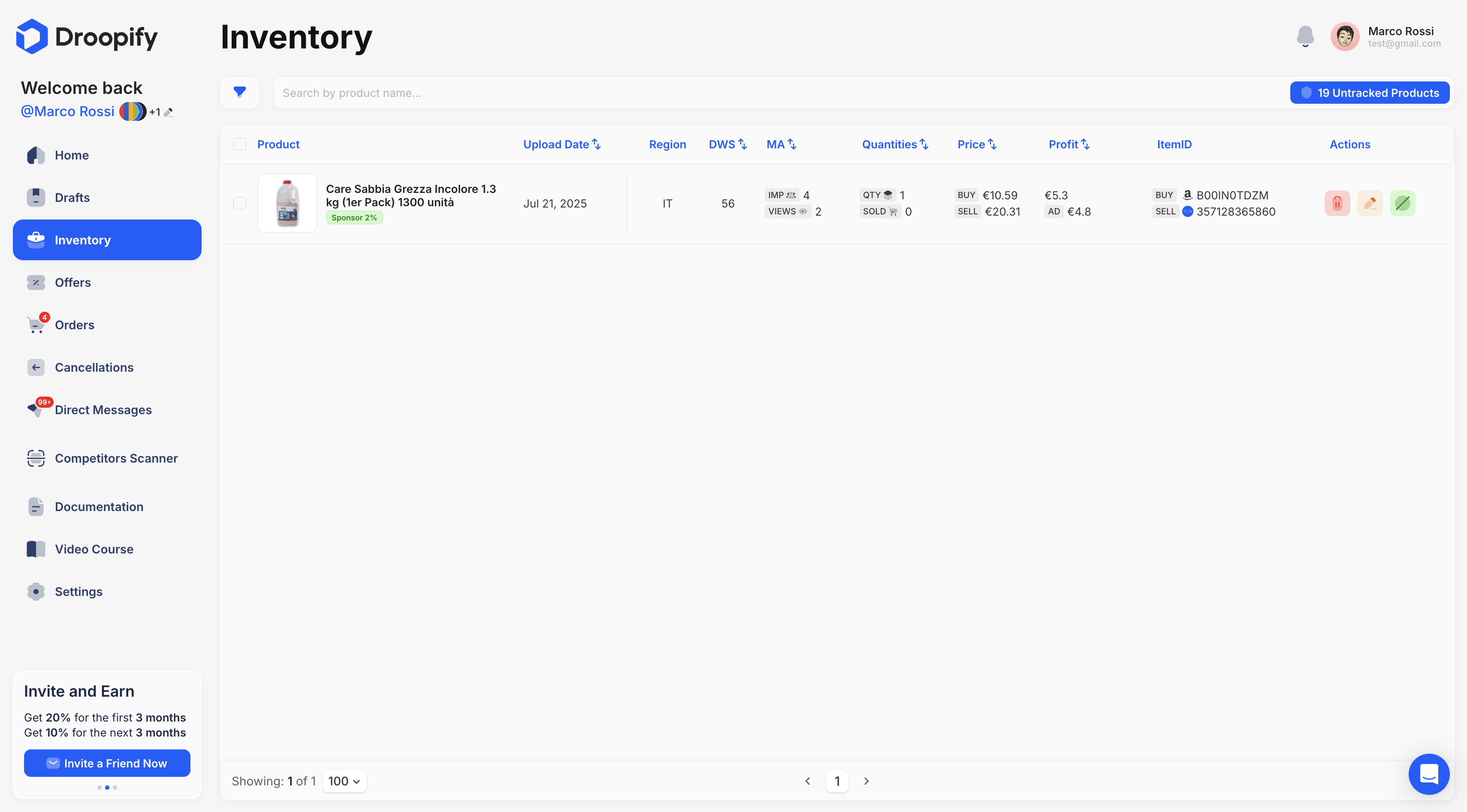
“Details” Section
This section contains the main fields of the Main Listing (“cover”), offering the ability to update its most important aspects.
| Field | Editable | Description |
|---|---|---|
| Title | ✅ | eBay listing title (max 80 characters). |
| eBay Account | ❌ | eBay account where the product was published. |
| Description | ✅ | Product description, displayed on eBay with an HTML template. |
| Category | ✅ | eBay category. If left empty, it is calculated automatically. |
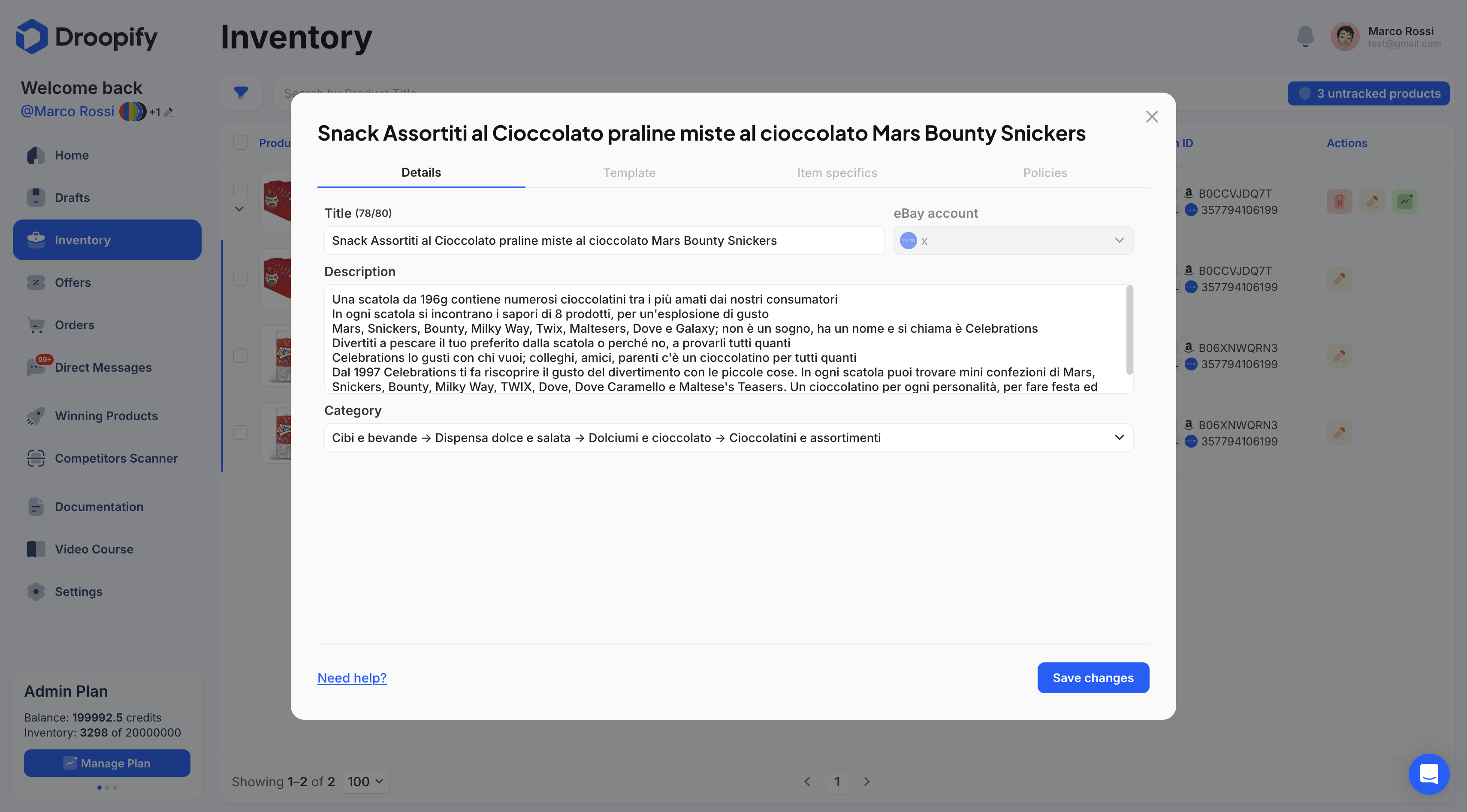
“Template” Section
In this section, it is possible to select the graphic template to apply to the listing.
| Field | Description |
|---|---|
| Template | Select a created or imported template. |
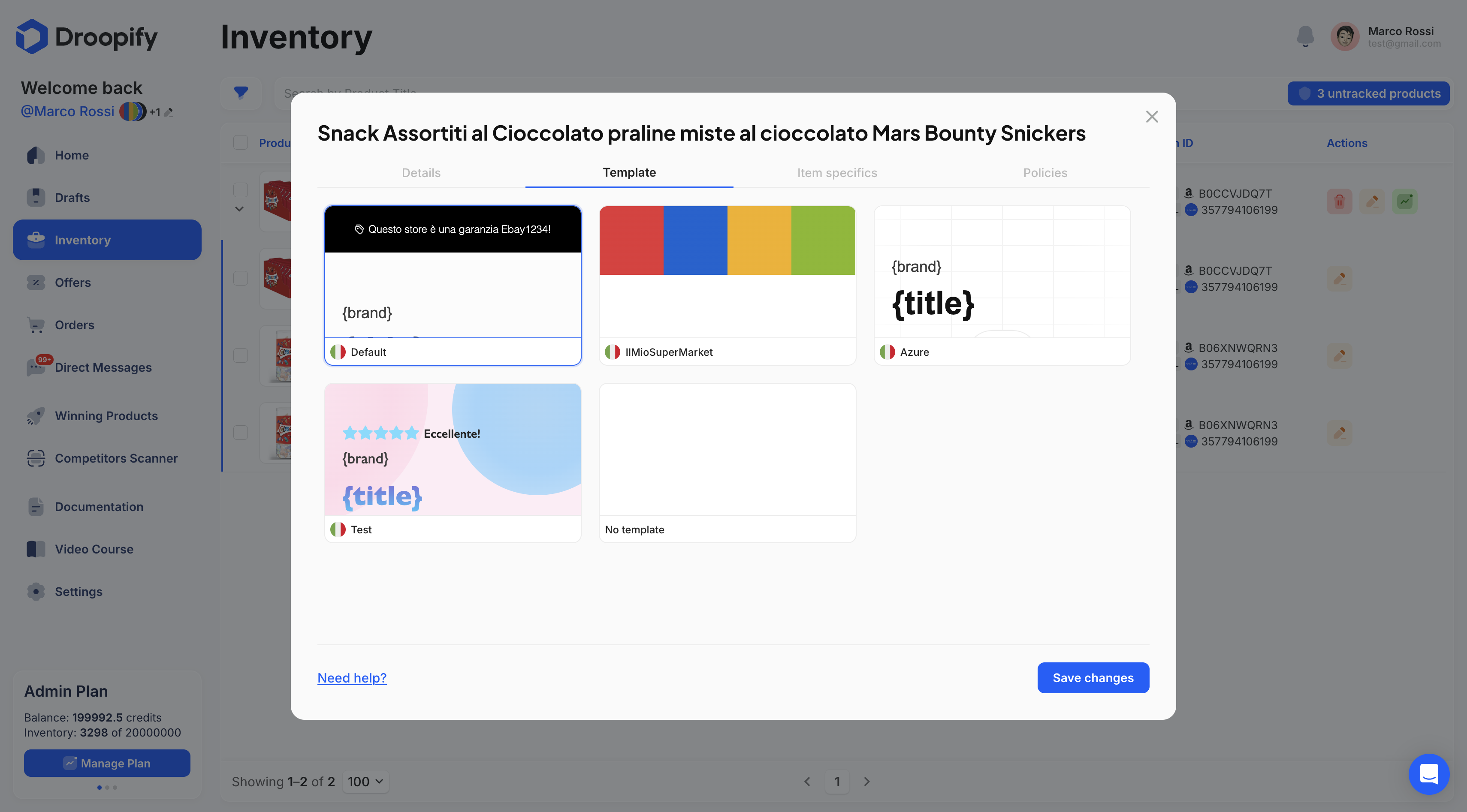
“Item Specifics” Section
Allows you to view and modify the product specifications imported from the supplier. It is recommended not to alter the original values, as they represent the official information.
| Field | Description |
|---|---|
| Specifications | View and edit the specifications imported from the supplier. |
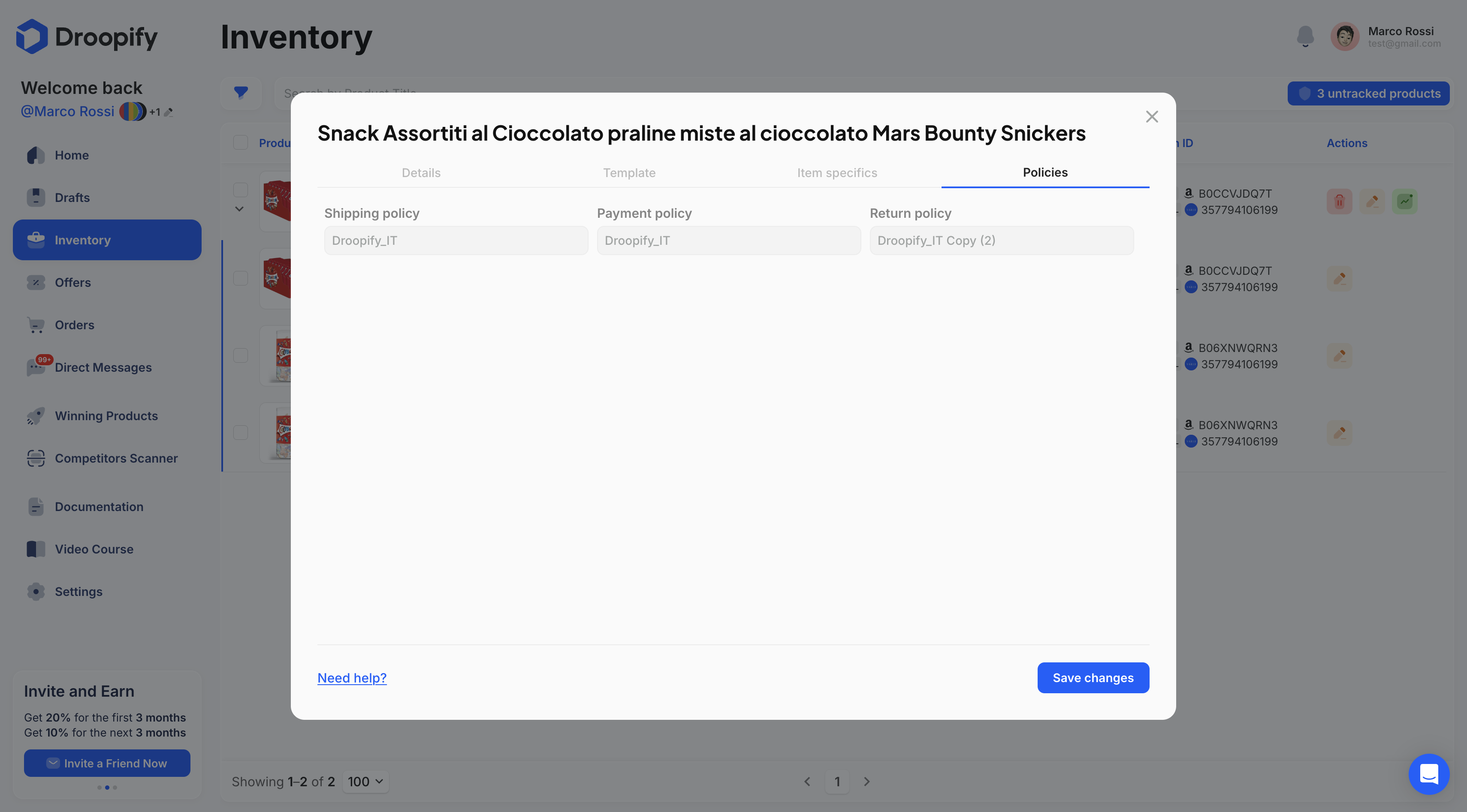
“Policies” Section
Displays information related to the product’s shipping, payment, and return policies.
Differences with a Single Listing
In the edit popup for an Ads Group, the Images section is missing:
- The images section is not present because the listing published on eBay will use some of the images from each individual variant. In this way, when a customer selects a variant on eBay, they will be able to directly view the corresponding image.
Conclusion
Managing an Ads Group allows you to optimize and centralize the main information of a product with variants, improving organization and control over listings. This mode ensures consistency across variants and simplifies the update process, offering analytical tools and dedicated sections to keep listings always up to date and effective.