Overview
This guide explains how to create a product draft on Droopify to be uploaded to eBay. The process is designed to be simple and fast, with the ability to import variants, monitor progress, and organize drafts into groups. By following the steps described, you will be able to efficiently manage the creation and import of products.
Creating a Draft
Step 1: Start the Creation
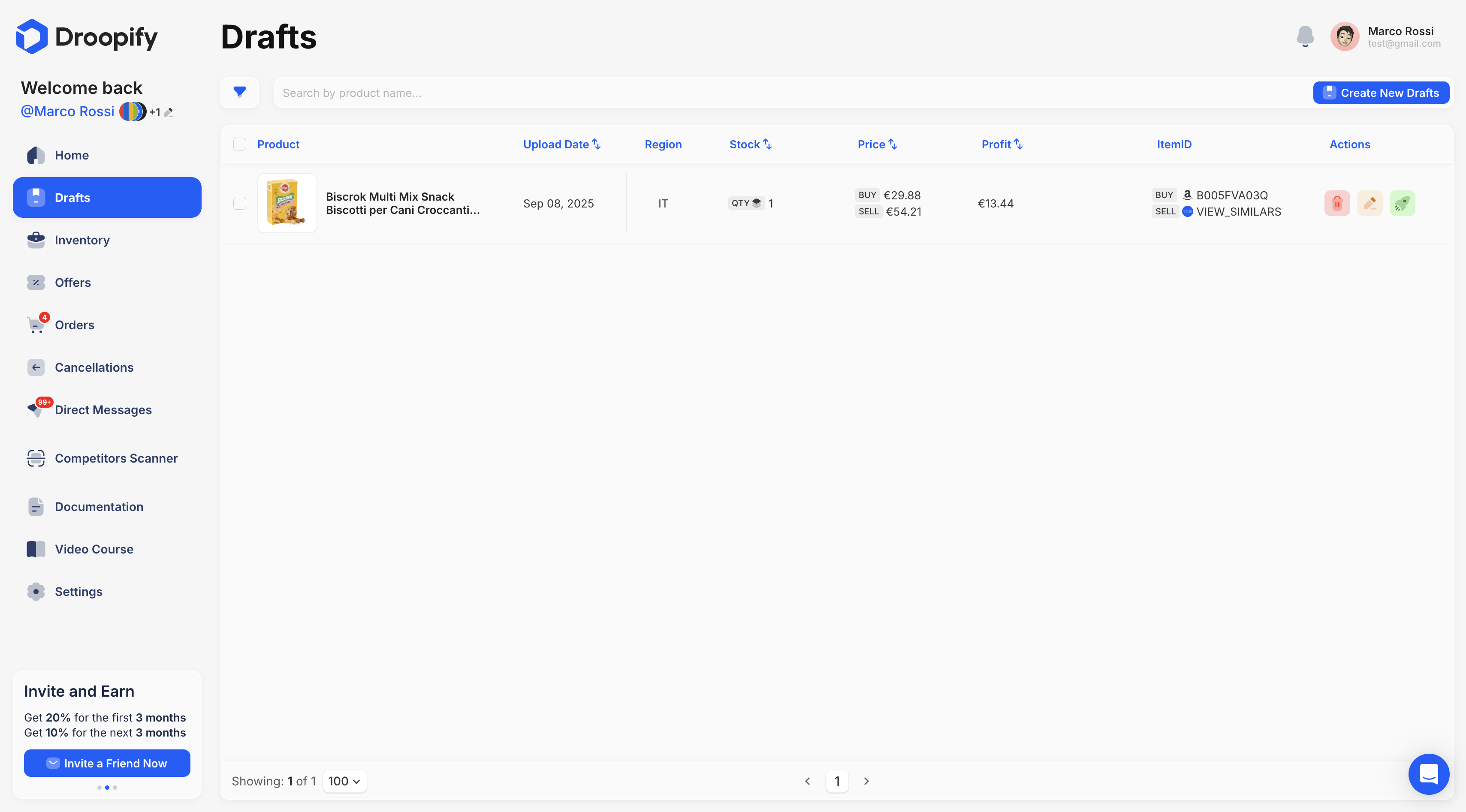
Go to the Drafts page and click the Create New Drafts button located at the top right.
Step 2: Fill in the Creation Pop-up
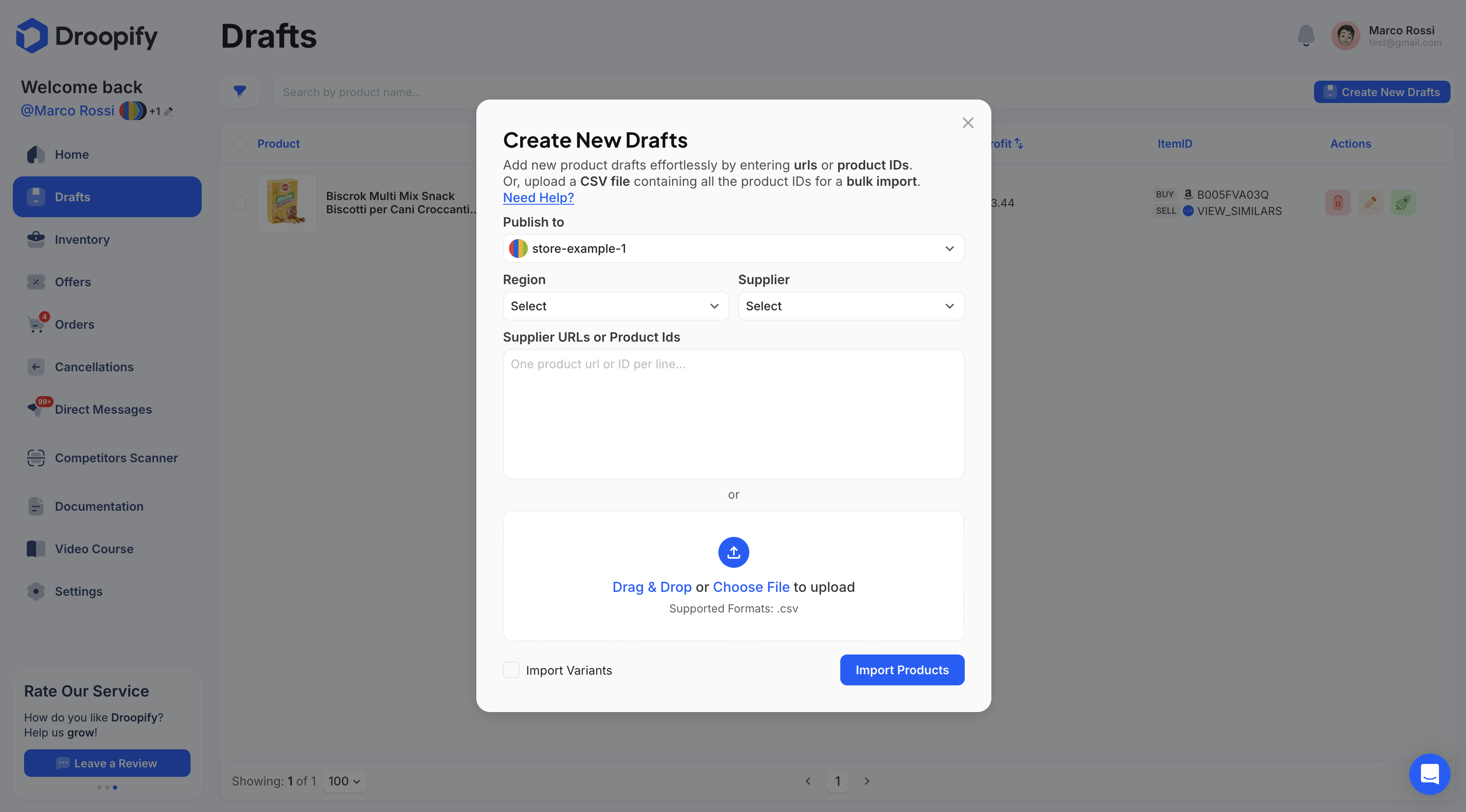
After clicking on "Create New Drafts", a dedicated pop-up will open. This form contains several editable fields:
| Field | Description |
|---|---|
| Publish on | Dropdown menu that allows you to choose which eBay store will be associated with the draft. If only one store is available, it will be selected automatically. |
| Sell in | Dropdown menu that allows you to choose the eBay region where the draft will be published. If you enter a product link in the area below, the supplier will be detected automatically. |
| Supplier | Defines the supplier of the product you want to import into drafts. If you enter a product link in the area below, the supplier will be detected automatically. |
| Ship from | Defines the shipping region of the draft (from which country/state the product is shipped). If you enter a product link in the area below, the region will be detected automatically. |
| Supplier URL or Product ID | Field where you can enter one or more supplier links (e.g. Amazon) or product IDs (e.g. Amazon ASIN). You can enter multiple links or product IDs by placing each one on a new line. |
| Import Variants | Checkbox that allows you to import all product variants (e.g. t-shirt sizes). |
Step 3: Import the Products
After completing the required fields, click Import Products to start the draft creation process.
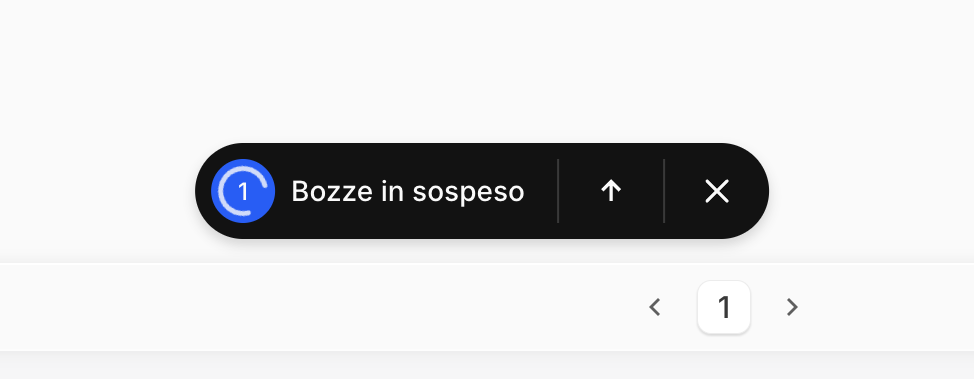
During the import, a Floating Bar will appear at the bottom of the page, showing the progress status.
Floating Bar Analysis
- Blue circle (bottom left): indicates the number of products currently being imported.
- X: allows you to hide the bar.
- Up arrow: expands the bar and shows the detailed progress of each draft.
- Down arrow: collapses the bar, hiding the details.
Viewing the Drafts
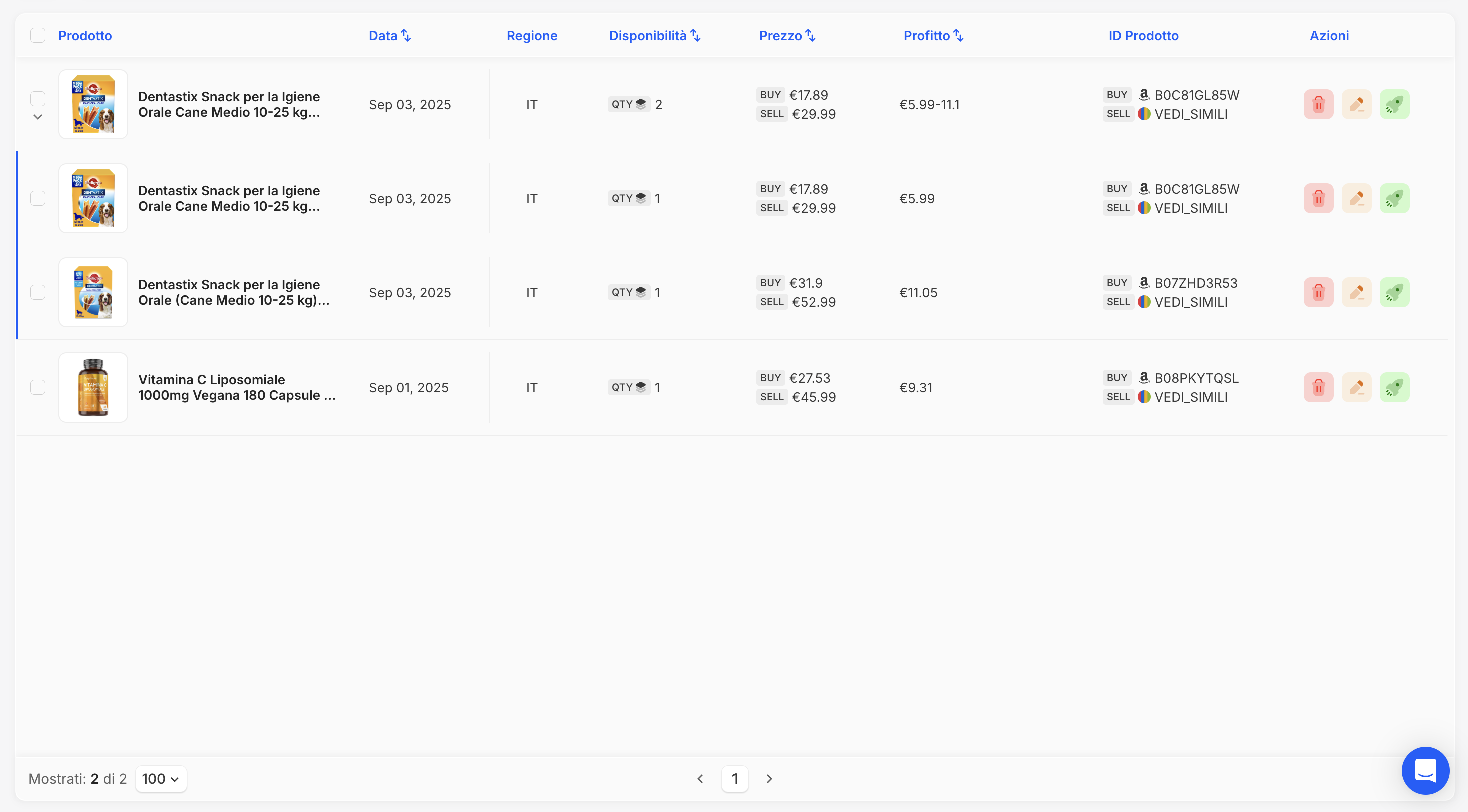
Once the import is completed, the drafts will be available on the Drafts page.
If the Import Variants option was selected, the draft will appear as a group.
By clicking the arrow icon to the left of the Draft group, you can expand the group and view the individual variants.
Conclusion
With this procedure, you can create product drafts in just a few minutes, import variants, and monitor the process in real time. Once completed, the drafts will be ready to be managed and published on eBay.