Overview
This documentation provides a comprehensive description of how to manage and modify the settings of an eBay account connected to Droopify. Each section of the panel allows you to control key aspects of the store: general settings, shipping, pricing and profits, automated messaging, promotions, discounts, operational automations, inventory, and synchronization of unmonitored products.
Modify the settings of an eBay Account connected to Droopify
From the Settings → eBay Accounts page you can manage and modify all the settings of an eBay account. The configurable areas include:
- General
- Prices and Stock
- Automatic Messages
- Automatic Sponsorship
- Discounts and Promotions
- Automations
- Shipping Policies
- Payment Policies
- Return Policies
- Tax Settings
- Untracked Products
How to modify the settings of an eBay Account connected to Droopify
To modify the settings of an eBay account connected to Droopify:
- Click the yellow button with the pencil icon to the right of the eBay account.
- Select the sales region.
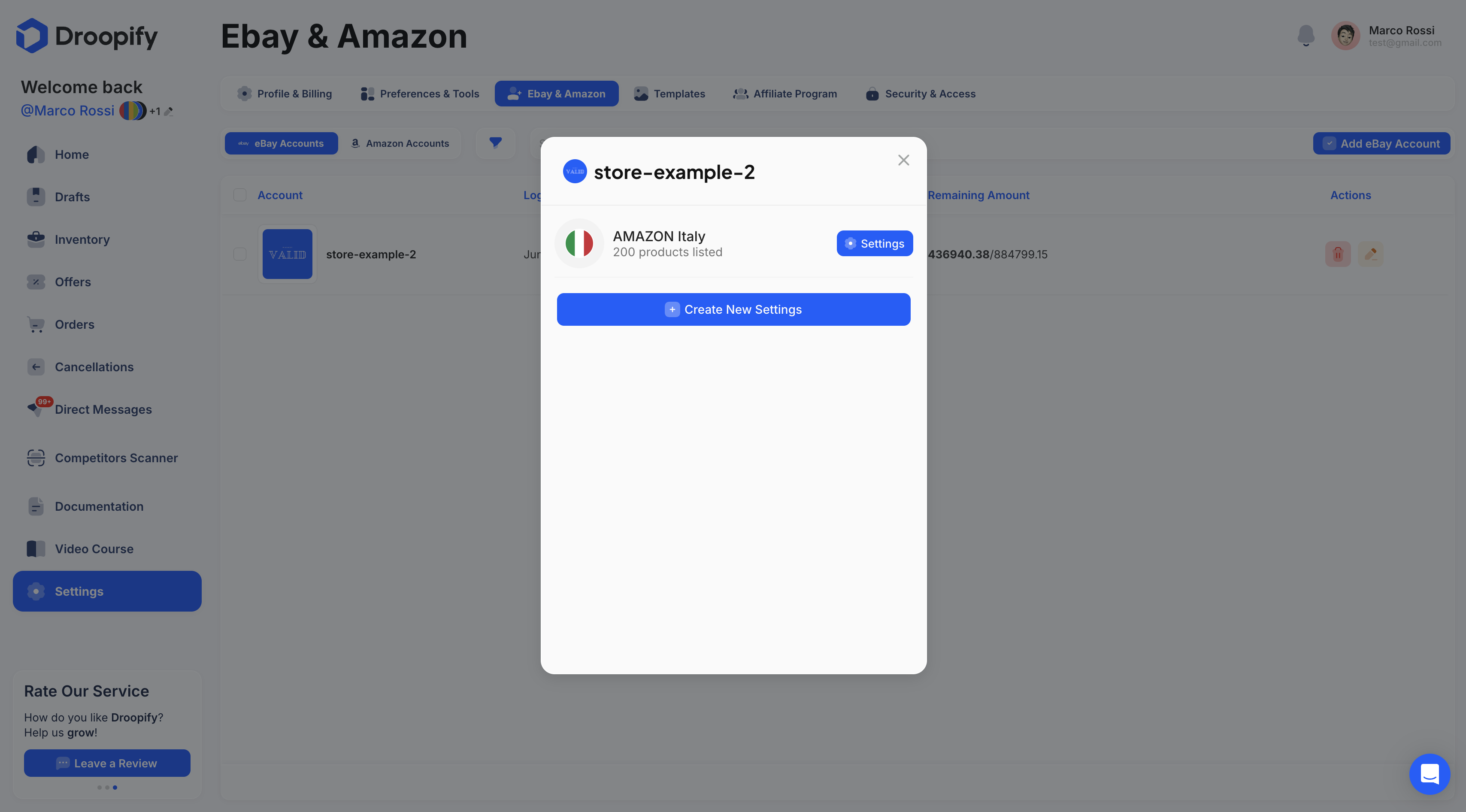
- Select the supplier for which you want to modify the settings (e.g. Amazon or Aliexpress). The changes apply to all products coming from that supplier and sold in the region selected in the previous step.
- From the panel you can create new settings using the blue button “Create New Settings”. It is not necessary to create them manually: when you import a draft of a new region x supplier (e.g. Aliexpress Germany), if the settings are missing, they will be created automatically.
eBay Account Settings Panel
The panel includes the following sections:
- General
- Prices and Stock
- Automatic Messages
- Automatic Sponsorship
- Discounts and Promotions
- Automations
- Shipping Policies
- Payment Policies
- Return Policies
- Tax Settings
- Untracked Products
Important:
Before closing the panel, always click the blue button at the bottom right “Save Changes” to apply the changes.
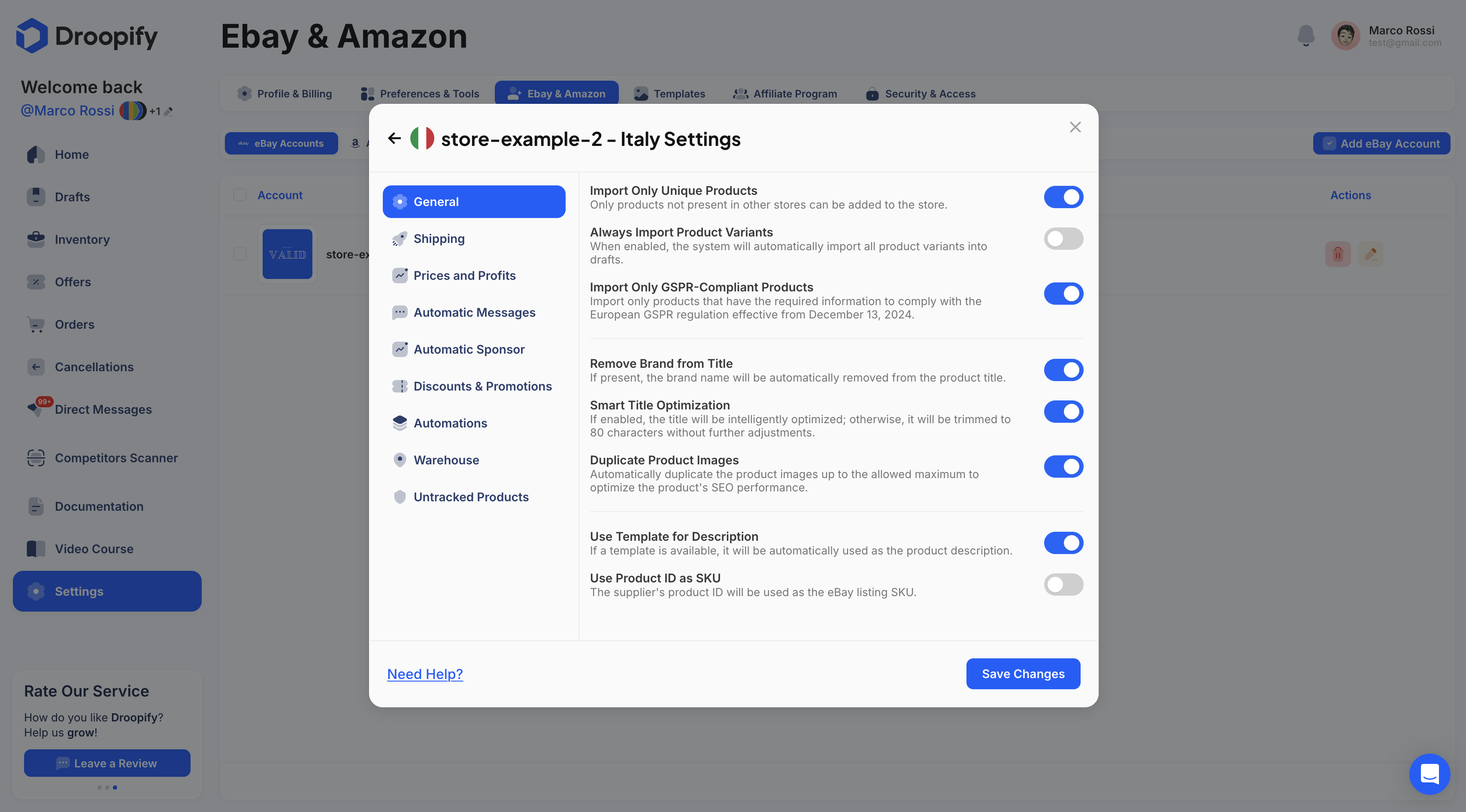
"General" Section
Basic settings related to the behavior of imported and published items:
- Import Only Unique Products: prevents uploading the same product from this store to other stores connected to Droopify. Example: if the item “Red Dog Bowl with White Dots” is already present in this account, its insertion into another eBay account will be blocked.
- Always Import Product Variants: when importing a product into drafts, automatically inserts all available variants.
- Import only products compliant with the European GSPR: useful for sales in the EU. According to the GSPR (December 2024), items must indicate a supplier and a European responsible party. Some products (e.g. on Amazon) may not be compliant: with this option you decide whether to import them or block them.
- Minimum Import Price: blocks the import of products with a cost lower than the set threshold (e.g. < 5). For example, if you set the Minimum Import Price to €5, all products with a cost below this threshold will automatically be excluded from import. For example, a product costing €3.99 will not be imported, while products priced at or above €5 will be imported normally. This allows you to avoid very cheap items, often associated with low margins.
- Maximum Import Price: blocks the import of products with a cost higher than the set threshold (e.g. > 100). For example, if you set the Maximum Import Price to €100, all products costing more than this threshold will automatically be excluded from import. For example, a product costing €120 will not be imported, while those priced at or below €100 will be imported normally. This setting is useful to avoid overly expensive items, which could reduce listing competitiveness or involve greater financial risk.
- Remove Brand from Title: when creating a draft, automatically removes the brand from the title (if present).
- Smart Title Optimization: optimizes the title by removing unnecessary spaces/characters to comply with the eBay limit of 80 characters. If disabled, the title is simply truncated to 80 characters.
- Duplicate Product Images: duplicates images to fill all available slots on eBay, improving visibility/internal SEO.
- Use Template for Description: applies a template to the description during publication; if disabled, uses the supplier’s description in text format.
- Use Product ID as SKU: sets the supplier’s product ID as the SKU.
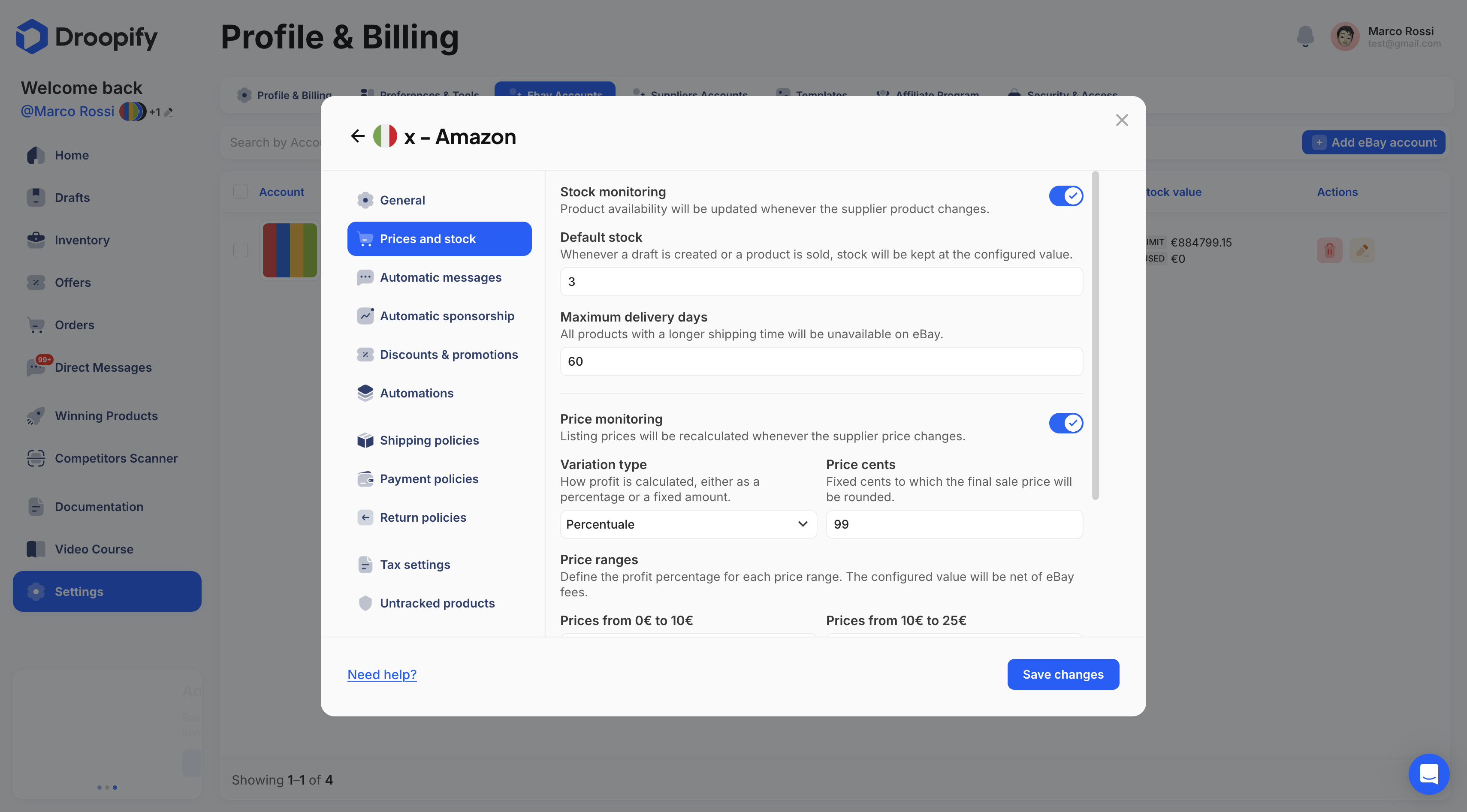
"Prices and Stock" Section
Settings for monitoring, price calculation, and margins:
- Stock Monitoring: enables/disables automatic stock monitoring.
- Default Stock: quantity that each listing will show on eBay; after each sale, availability returns to this value.
- Maximum Delivery Days: when a product has an estimated delivery time greater than the entered value, it is set as unavailable (stock = 0).
- Price Monitoring: enables/disables automatic price monitoring by Droopify.
- Variation Type: choose between Percentage (e.g. +30% on the supplier’s net cost) or Unit (e.g. +€5 fixed).
- Price Cents: enforces a uniform price ending (e.g. .99, .49, .50). If this field is left empty after calculating the final sale price, the cents will remain unchanged.
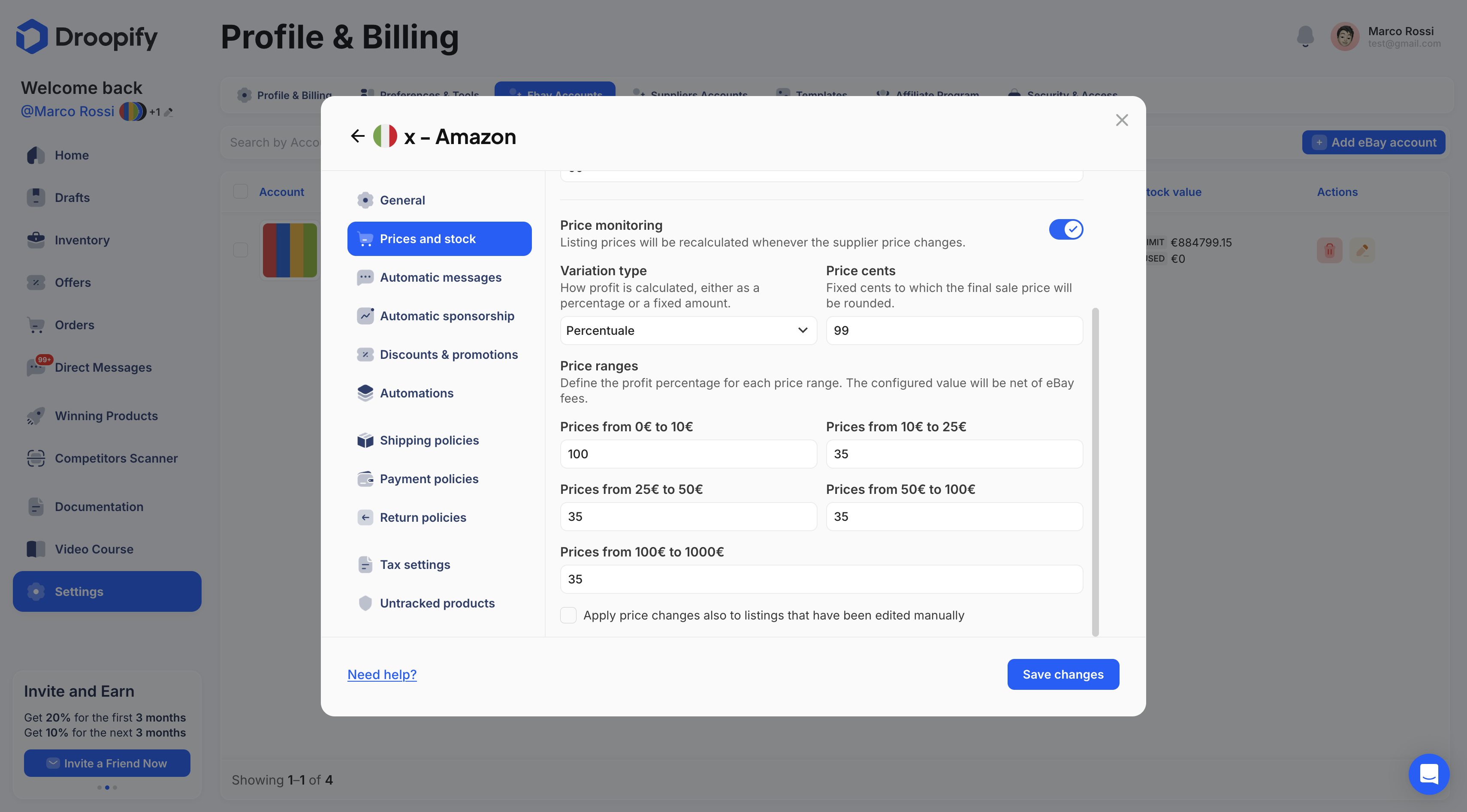
Price ranges
Use these ranges to apply differentiated profits:
| Purchase price range | Profit rule (Percentage or Unit) |
|---|---|
| 0 – 10 | Set your rule for products costing between 0 and 10 |
| 10 – 25 | Set your rule for products costing between 10 and 25 |
| 25 – 50 | Set your rule for products costing between 25 and 50 |
| 50 – 100 | Set your rule for products costing between 50 and 100 |
| > 100 | Set your rule for products costing more than 100 |
- Apply price changes also to manually modified listings: when you modify and save the price range values, the prices of all products within the selected region and supplier are updated according to the new settings. The update is not immediate and may take several hours. By default, only products whose price has never been manually modified are updated; by enabling this option before saving, the changes will also be applied to products with manually set prices.
Important:
All calculations performed by Droopify include all eBay fees; therefore, all profits set are net of any eBay fees.
Profit = Sale Price - Purchase Price - eBay Fees - VAT % (if set)
Important:
When modifying the price range values, listing prices will not be updated instantly but may take some time, up to a maximum of 1 hour.
"Automatic Messages" Section
Configurations for automatic customer communications based on order status:
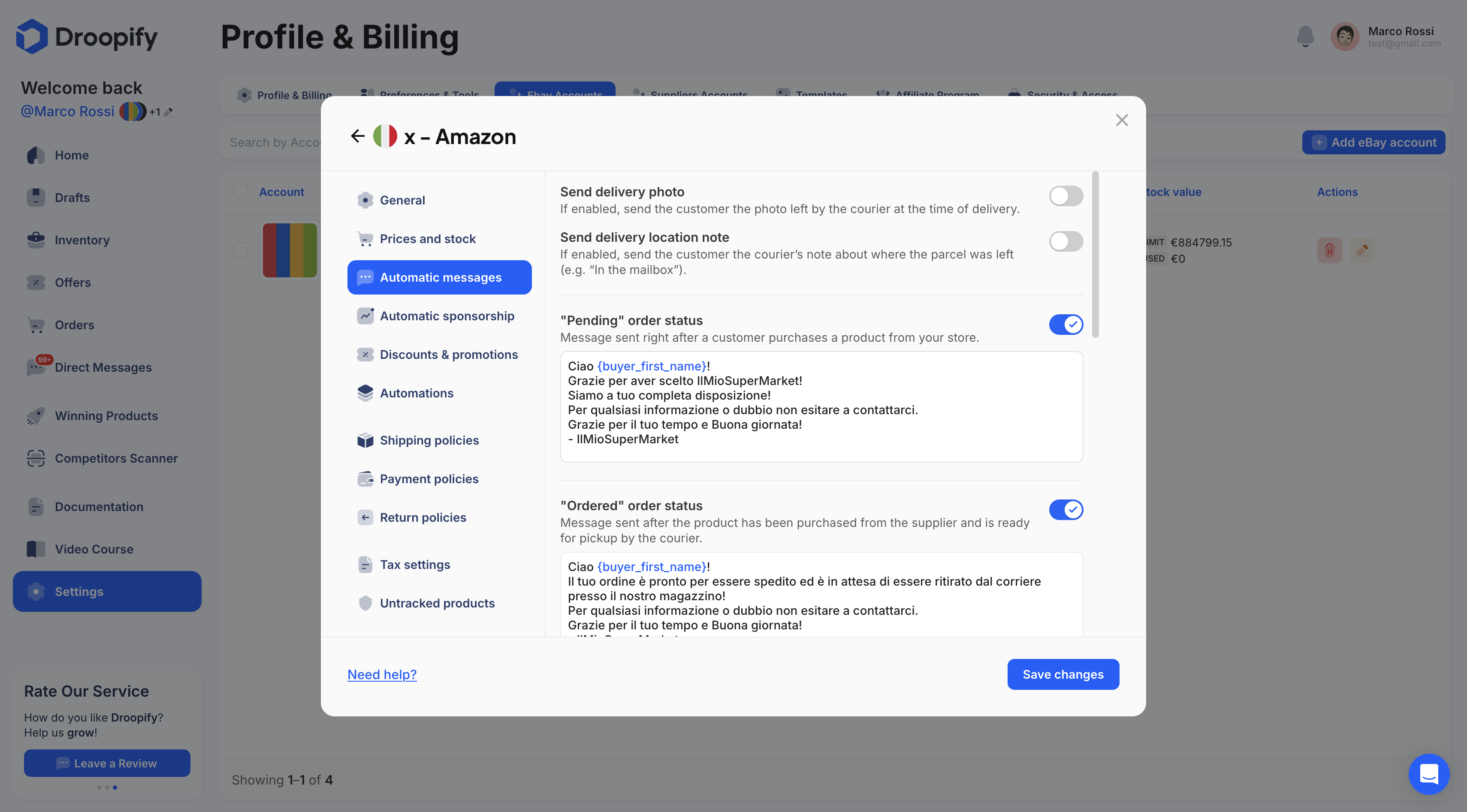
- Send delivery photo: if provided by the courier, sends the photo to the customer as proof of delivery (useful in case of disputes).
- Send delivery location note: if enabled, sends the courier’s note indicating where the package was left (e.g. “In the mailbox”).
- "Pending" Order status: automatic message when the order has just been received.
- "Ordered" Order status: automatic message when the product has been purchased from the supplier.
- "Shipped" Order status: automatic message when the supplier ships the product.
- "Delivered" Order status: automatic message upon completion of delivery to the buyer’s address.
- "Cancelled" Order status: automatic message when the order is cancelled.
- Feedback: message sent by clicking the purple button “Request Feedback” for “Delivered” orders without feedback received.
- Listing Offer: automatic message with a purchase offer sent from the Offers page.
"Automatic Sponsorship" Section
Settings for automatic promotion of listings:
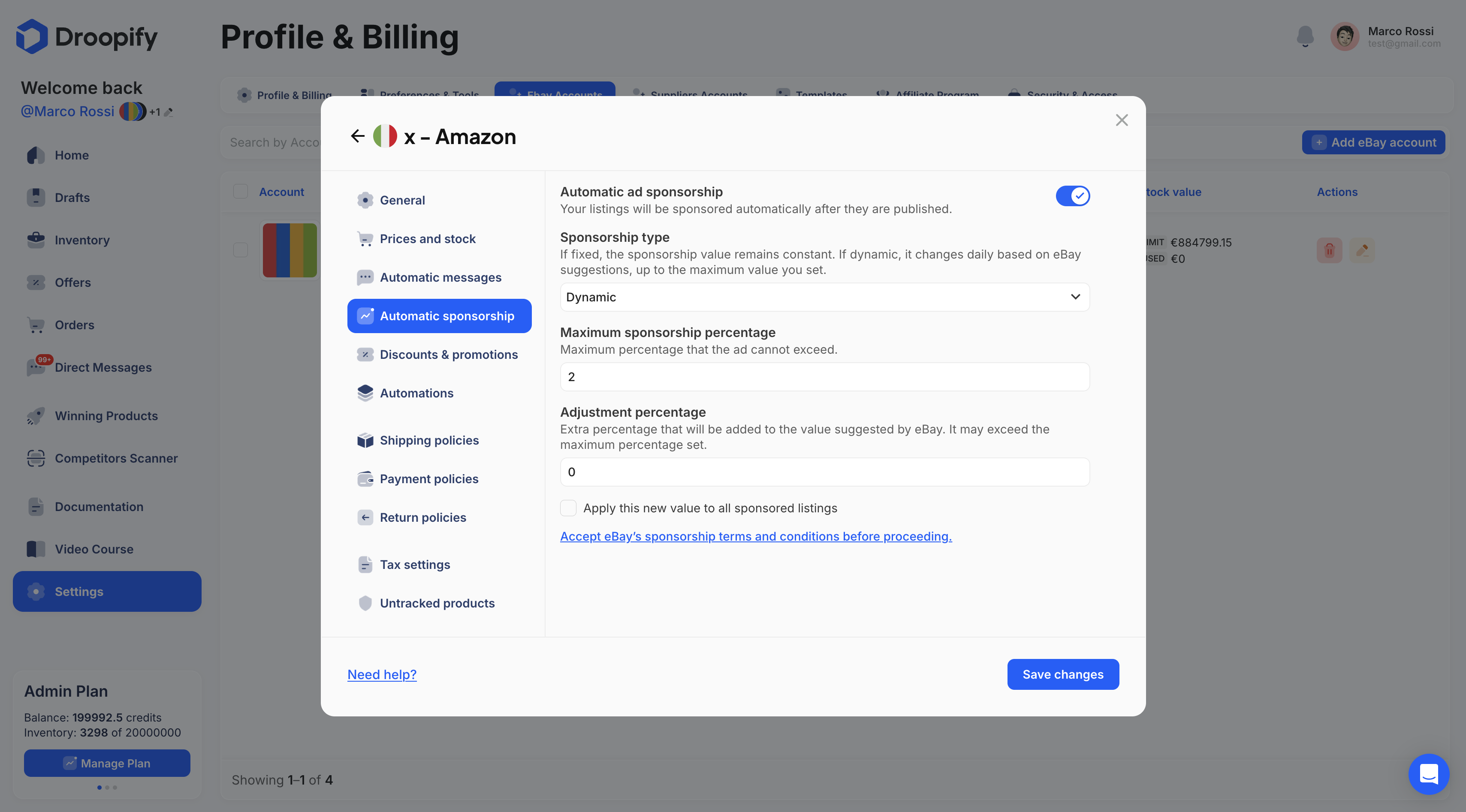
- Automatic Ad Sponsorship: if enabled, after 5–10 minutes from publishing a listing, Droopify automatically sponsors it.
- Sponsorship Type: select the type of sponsored campaign to apply to listings. For more information, see Sponsor Listings (/docs/sponsorizzare-inserzioni).
- Apply this new value to all sponsored listings: if selected, updates all listings of this eBay account with the new sponsorship settings.
"Discounts and Promotions" Section
Configurations for offers and discount codes:
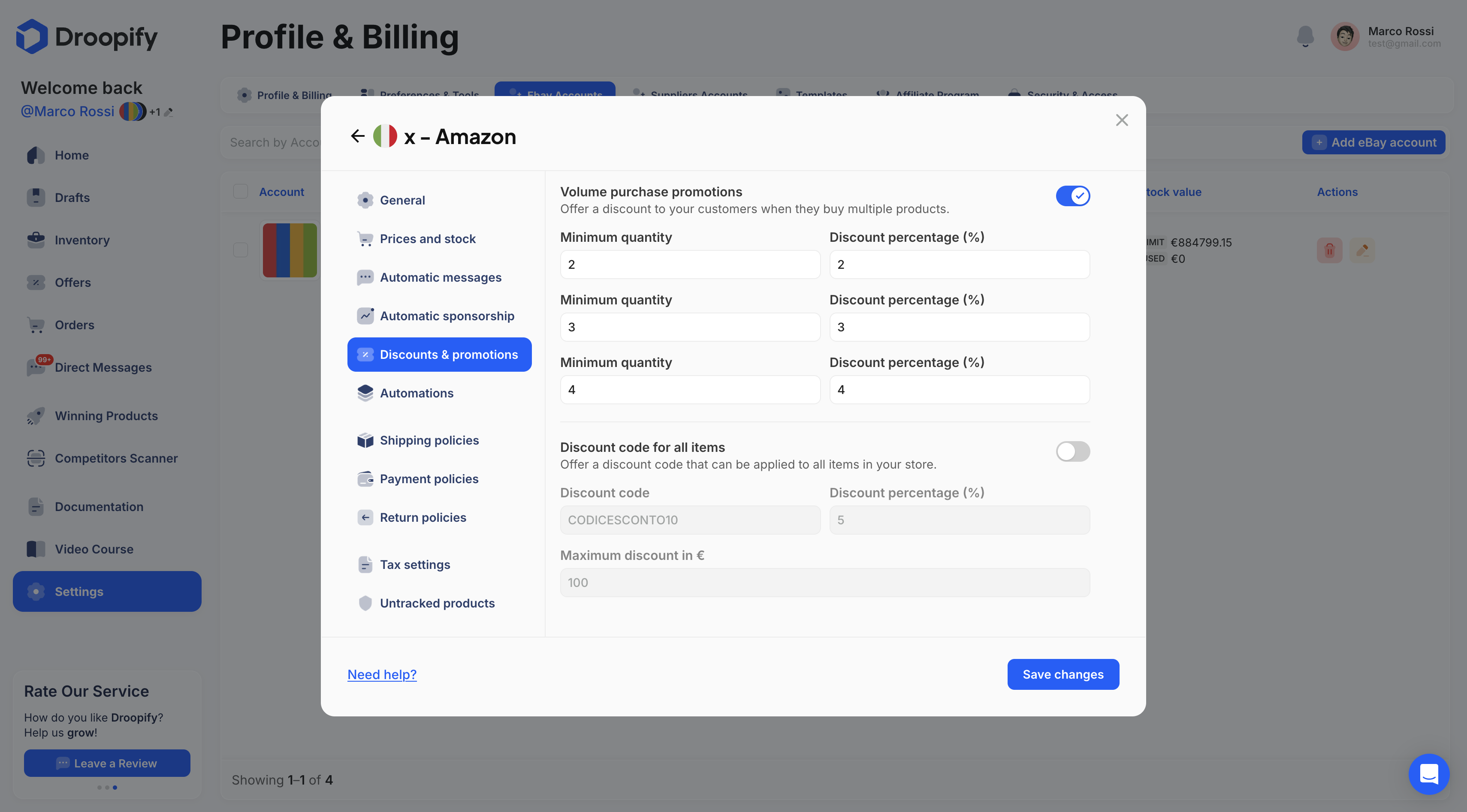
- Volume Purchase Promotions: discounts applied to customers who purchase multiple items together. Requires availability > 1 per product; otherwise, the promotion is not visible.
- Discount Code for All Items: displays, on product pages and eBay search results, a redeemable code available to all customers with the percentage of your choice (minimum 5%) and a maximum cap (e.g. €5). Based on analysis, it significantly increases conversions.
"Automations" Section
Operational automations for order fulfillment:
- Automatic Purchase with Auto Order: after 5–10 minutes from a sale on eBay, the order is automatically fulfilled via Auto Order using an available Amazon account. The order is also linked to automatic monitoring, allowing Droopify to manage it end-to-end until delivery.
"Shipping Policies" Section
Configurations related to shipping times and methods:
- Ship from: dropdown menu where you can select the region to modify (indicates the origin region of the items, not the region where they will be sold).
- Ship from {REGION}: from here you can enable or disable the use of this region as the product origin. For example, if we import products from AliExpress and set the origin warehouse to “first available,” but Germany is disabled, the product will automatically use a shipping option that does not depart from Germany.
- Warehouse: this value will be set on eBay as the departure location of packages for shipments from this region.
- Handling Time: days required to purchase/fulfill the item from the supplier. If you fulfill on the same day (orders received by 6:00 PM), leave 0; otherwise, set a consistent value.
- Use Supplier Shipping Time: if enabled, the estimated times in listings reflect those provided by the supplier (recommended to reduce disputes over delays).
- Use a custom shipping policy: if enabled, a dropdown menu will appear allowing you to select one of the shipping policies already present in your eBay account, previously created directly on the eBay website.
- Delivery Days: available only if the previous option is disabled; allows you to set a static delivery time to display in listings. Using this data, a shipping policy will be automatically created and applied to all current and future listings.

Important:
It is not necessary to use the “Use a custom shipping policy” setting, nor to manually create custom shipping policies directly on eBay. By using the options “Use Supplier Shipping Days” or “Delivery Days”, a shipping policy consistent with the provided information will be created automatically.
"Payment Policies" Section
Configurations related to payment policies:
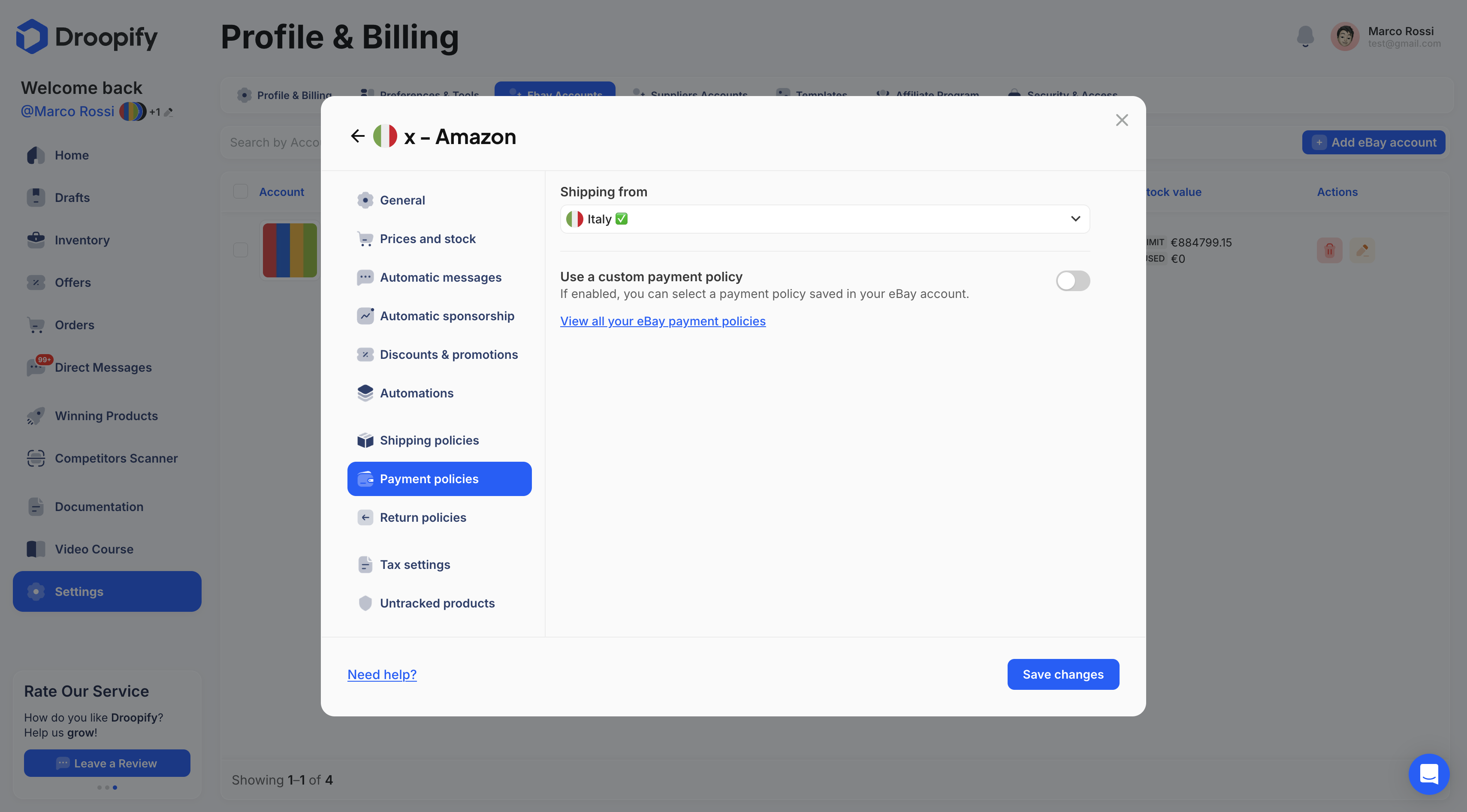
- Ship from: dropdown menu where you can select the region to modify (indicates the origin region of the items, not the region where they will be sold).
- Use a custom payment policy: if enabled, a dropdown menu will appear allowing you to select one of the payment policies already present in your eBay account, previously created directly on the eBay website. If you do not enable this option, Droopify will create one automatically for you.
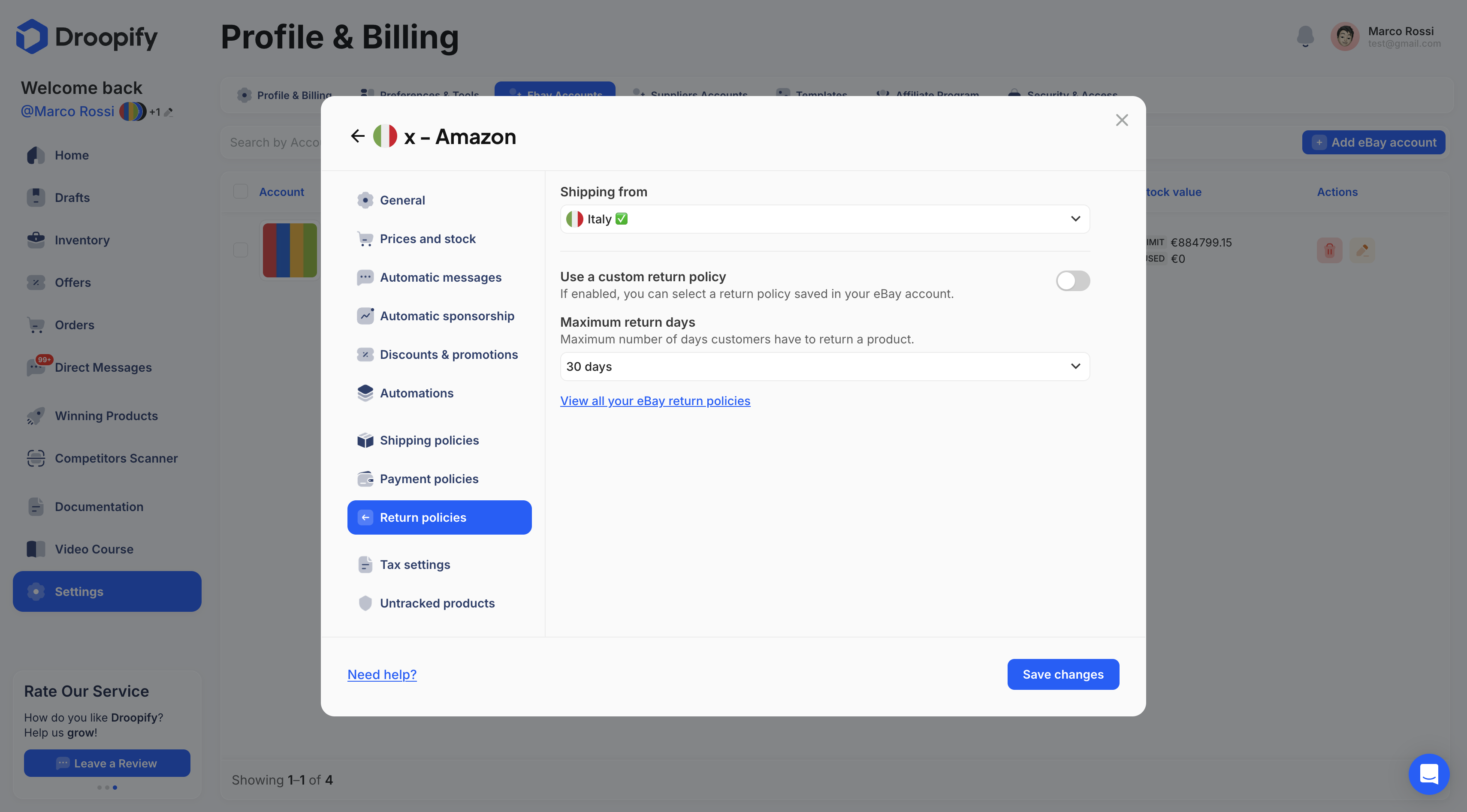
"Return Policies" Section
Configurations related to return policies:
- Ship from: dropdown menu where you can select the region to modify (indicates the origin region of the items, not the region where they will be sold).
- Use a custom return policy: if enabled, a dropdown menu will appear allowing you to select one of the return policies already present in your eBay account, previously created directly on the eBay website. If you do not enable this option, Droopify will create one automatically for you.
- Maximum return days: if you have not enabled “Use a custom return policy,” Droopify will automatically create a return policy. This will allow free returns within the maximum number of days you set here.
"Tax Settings" Section (Professional Settings)
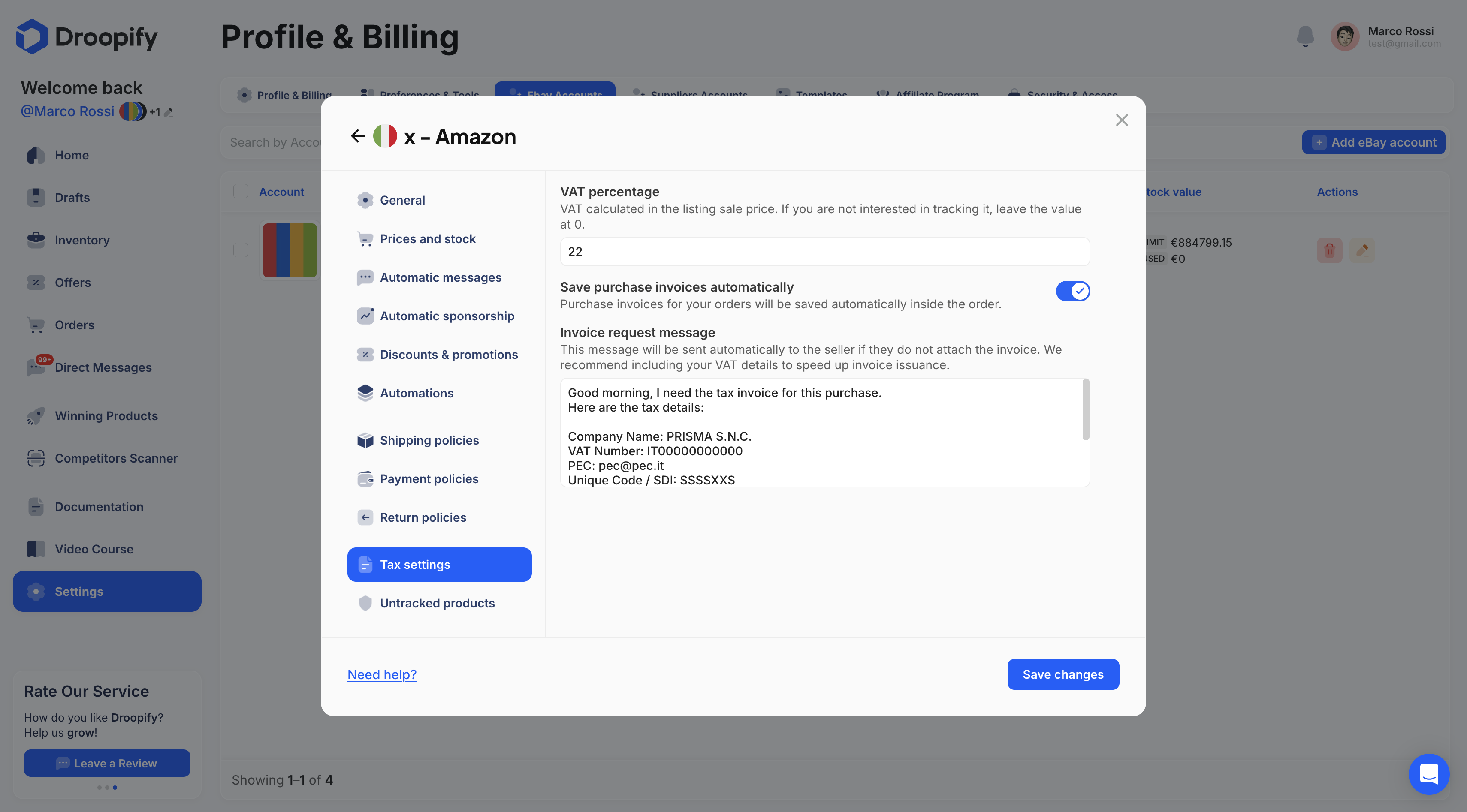
Configurations related to tax settings:
- VAT Percentage: VAT calculated in the listing sale price. If you are not interested in tracking it, leave the value at 0).
- Automatically Save Purchase Invoices: a feature that, during order monitoring, allows Droopify to automatically search for and attach the supplier’s invoice to the order, saving it to the cloud. If this invoice is not provided automatically by the seller, it will be requested via an automatic message. This feature is particularly useful for sellers with a VAT number who need to archive purchase invoices in a simple and automatic way.
- Invoice Request Message: this text field is useful for writing the automatic message to be sent for invoice requests; make sure to include all required details. Here is a valid example:
Good morning, I need the tax invoice for this purchase.
Here are the tax details:

Company Name: PRISMA S.N.C.
VAT Number: IT00000000000
PEC: pec@pec.it
Unique Code / SDI: SSSSXXS
Address 1: VIA ROMA 1
City: Rome
Postal Code: 10001
Province: RM
"Untracked Products" Section
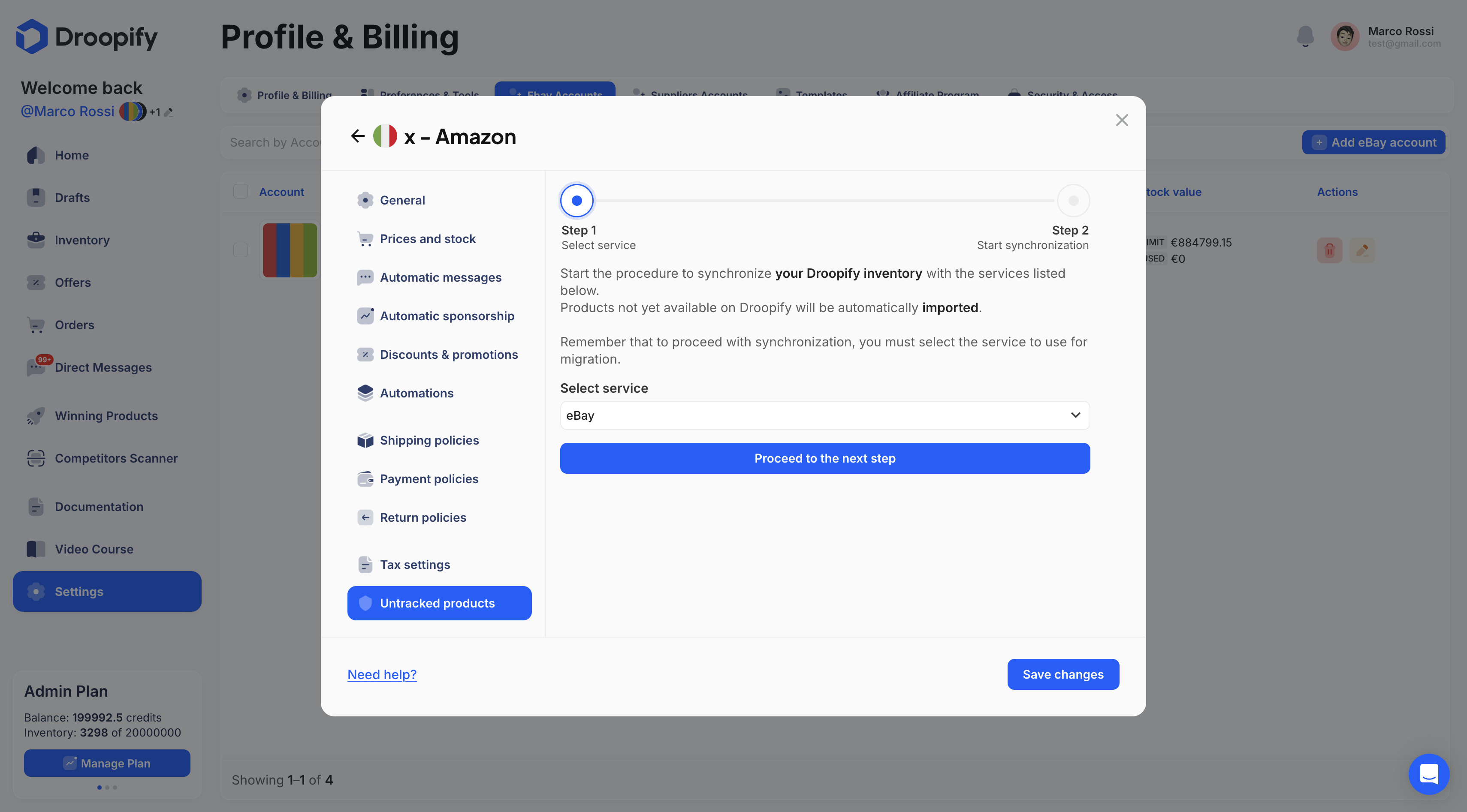
Start the synchronization between your eBay account and Droopify to import products that are present on eBay but not yet in Droopify. You can migrate products from AutoDS to Droopify from this section: you must have the Droopify Chrome Extension installed and an active AutoDS subscription.
If the requirements are met, by following the proposed steps you can migrate all AutoDS products into Droopify:
- Amazon products are automatically associated with their respective listings.
- Prices, descriptions, titles, and specifications are overwritten with Droopify settings.
Important:
Having an active AutoDS subscription is a required condition to complete the migration. Check the status before proceeding. Paused accounts cannot be migrated.
Conclusion
The Droopify eBay settings panel provides complete control over every aspect of the store: general rules, shipping, pricing and margins, messaging, sponsorships, promotions, automations, inventory management, and product synchronization. By carefully configuring each section, you can optimize visibility, streamline operational workflows, reduce errors and disputes, and maximize the profits of your eBay store.