Overview
In Droopify, a Draft with variants represents a group of products that share the same main page but give the customer the ability to choose between different options, such as color, size, or model. This guide explains how to correctly edit a group of Drafts with variants, highlighting the main differences compared to Drafts without variants and providing clear steps for managing titles, descriptions, prices, and availability.
Differences Compared to Editing a Single Draft
Editing a Draft with variants is similar to editing a Single Draft, but it has some fundamental differences:
- The Main Draft acts as the "cover" of the future product page on eBay. In this section, it is only possible to edit information not related to price.
- The Product Variants represent the individual products that make up the listing. Each variant can also be published separately, if necessary.
How to Edit a Draft Group
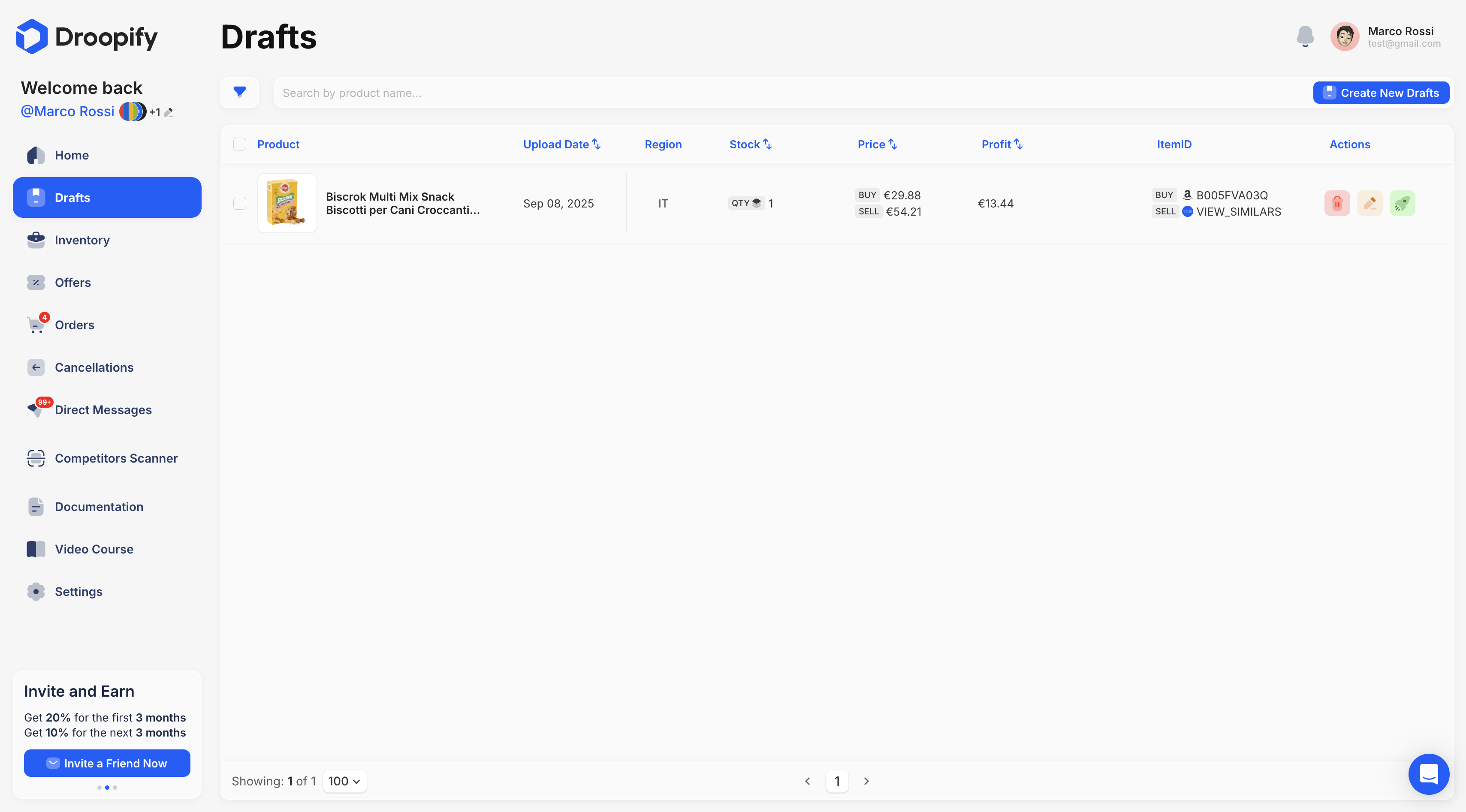
To access the draft editing view, click on the yellow pencil icon next to the desired draft. A pop-up will open, allowing you to update the details of the future listing.
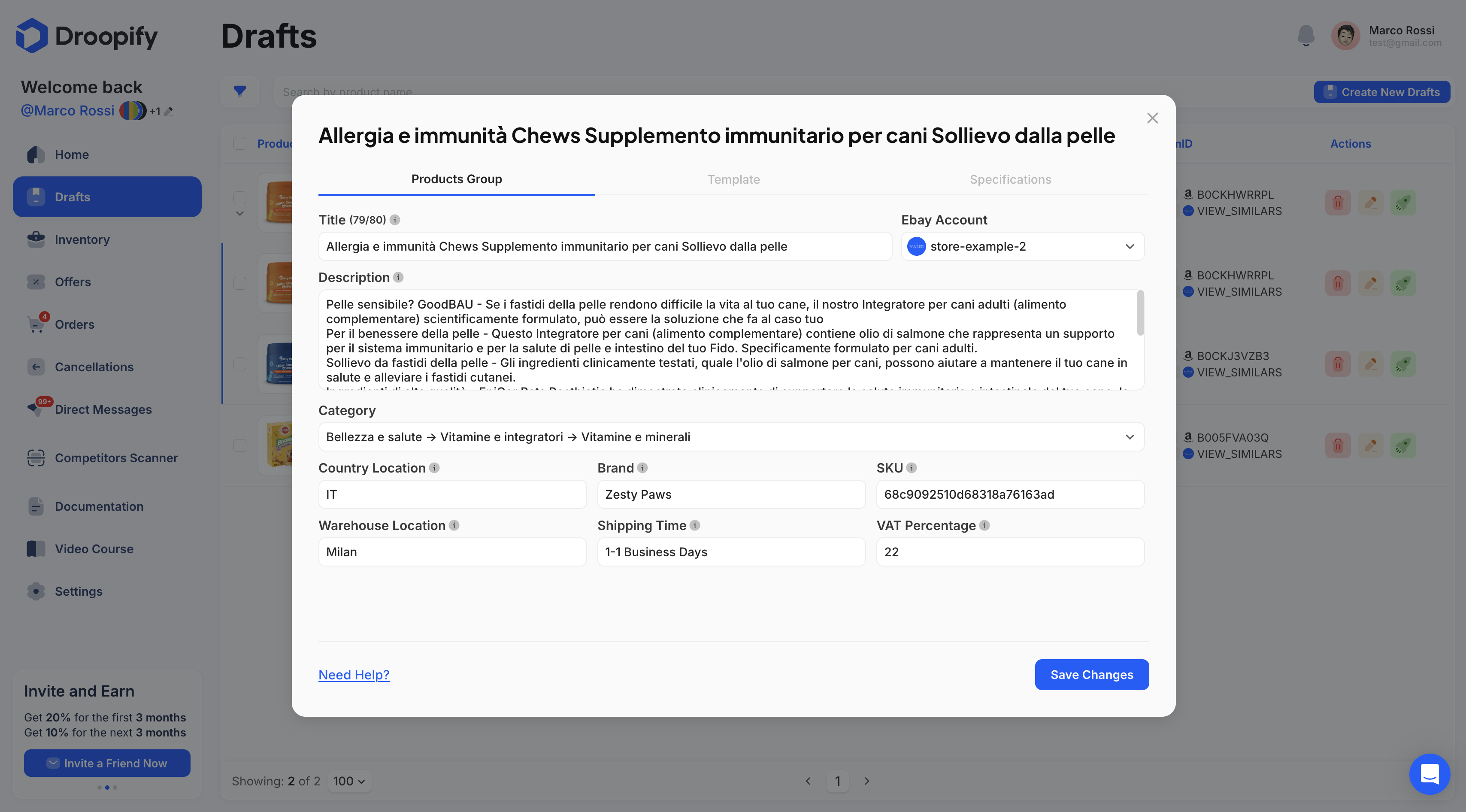
"Details" Section
This section contains the main fields of the Main Draft ("cover"), offering the possibility to update its most important aspects.
| Field | Editable | Description |
|---|---|---|
| Title | ✅ | eBay listing title (max 80 characters). |
| eBay Account | ✅ | eBay account to publish on. If only one account is available, it is automatically selected. |
| Description | ✅ | Product description, displayed on eBay using an HTML template. |
| Category | ✅ | eBay category. If left empty, it will be calculated automatically. |
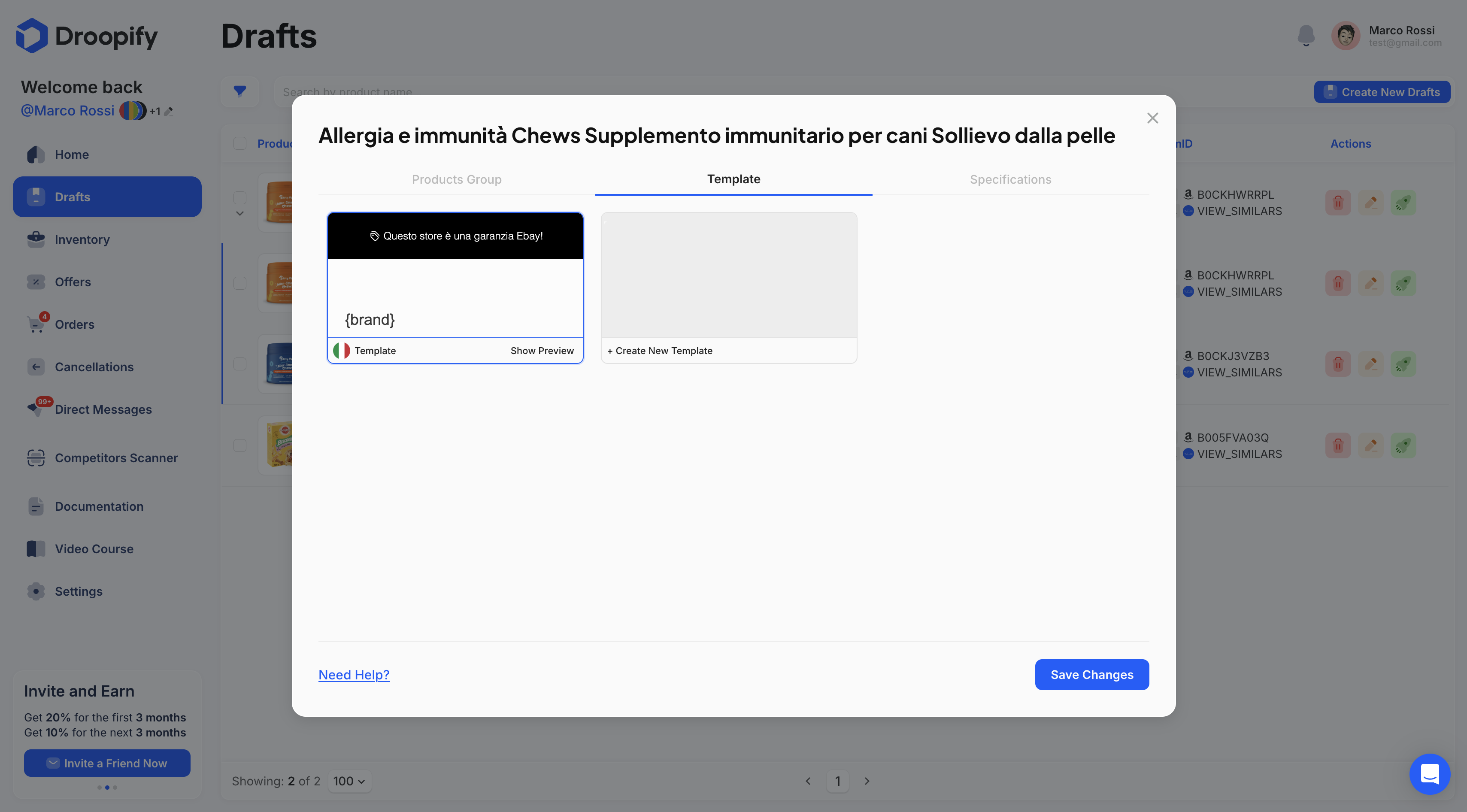
"Template" Section
In this section, you can select the graphic template to apply to the listing. If not modified, the default template will be used automatically.
| Field | Description |
|---|---|
| Template | Select a created or imported template. |
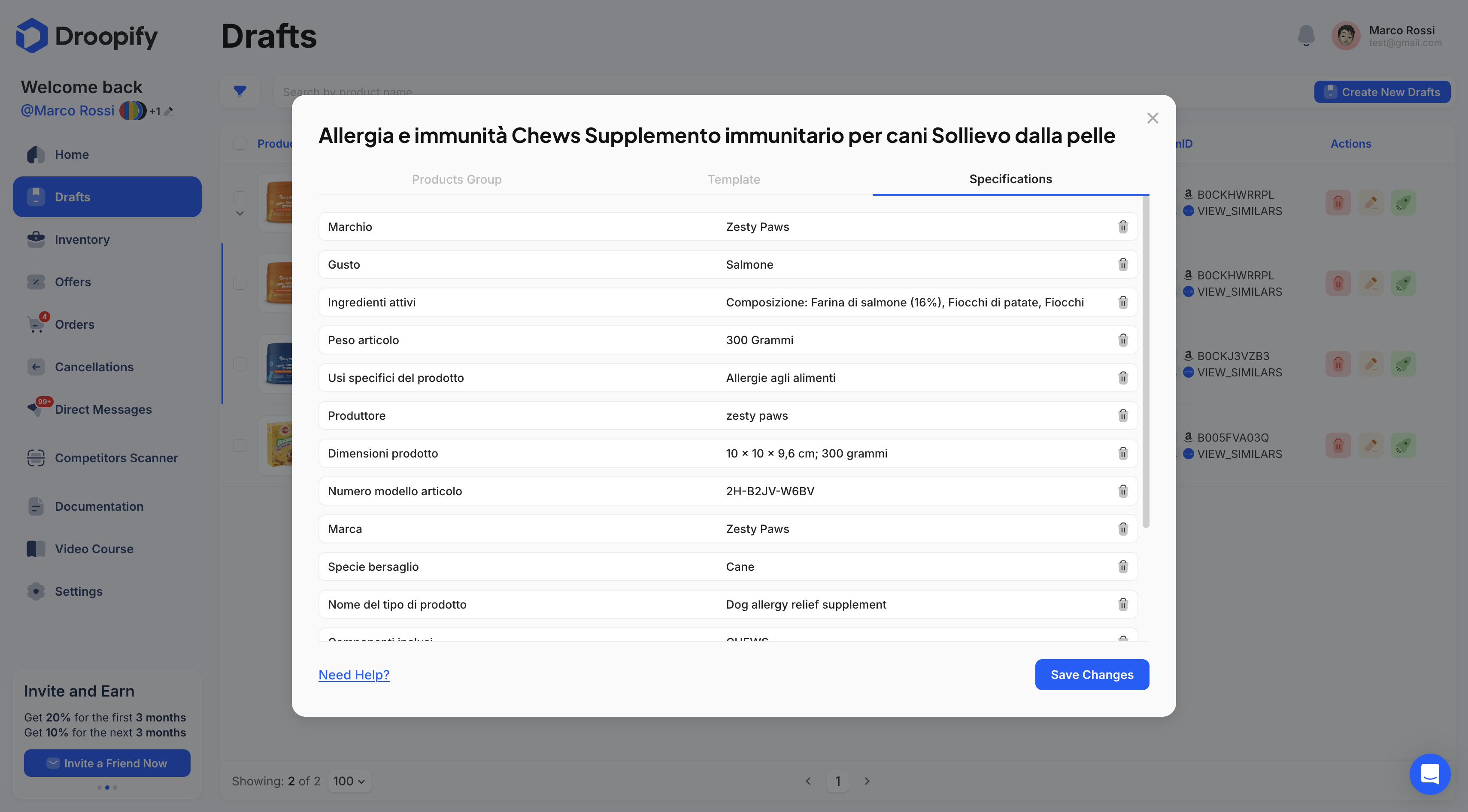
"Item Specifics" Section
Allows you to view and edit product specifications imported from the supplier. It is recommended not to alter the original values, as they represent the official information.
| Field | Description |
|---|---|
| Specifications | View and edit the specifications imported from the supplier. |
Differences with a Single Draft
In the edit popup for a Draft Group, the Images section is missing:
- The images section is not present because the eBay listing will use some of the images from each individual variant. This way, when a customer selects a variant on eBay, they will be able to directly view the corresponding image.
Conclusion
By following these steps, you will be able to effectively edit and manage your Drafts with variants on Droopify, ensuring that each product is presented to your customers in a clear, consistent, and complete manner.